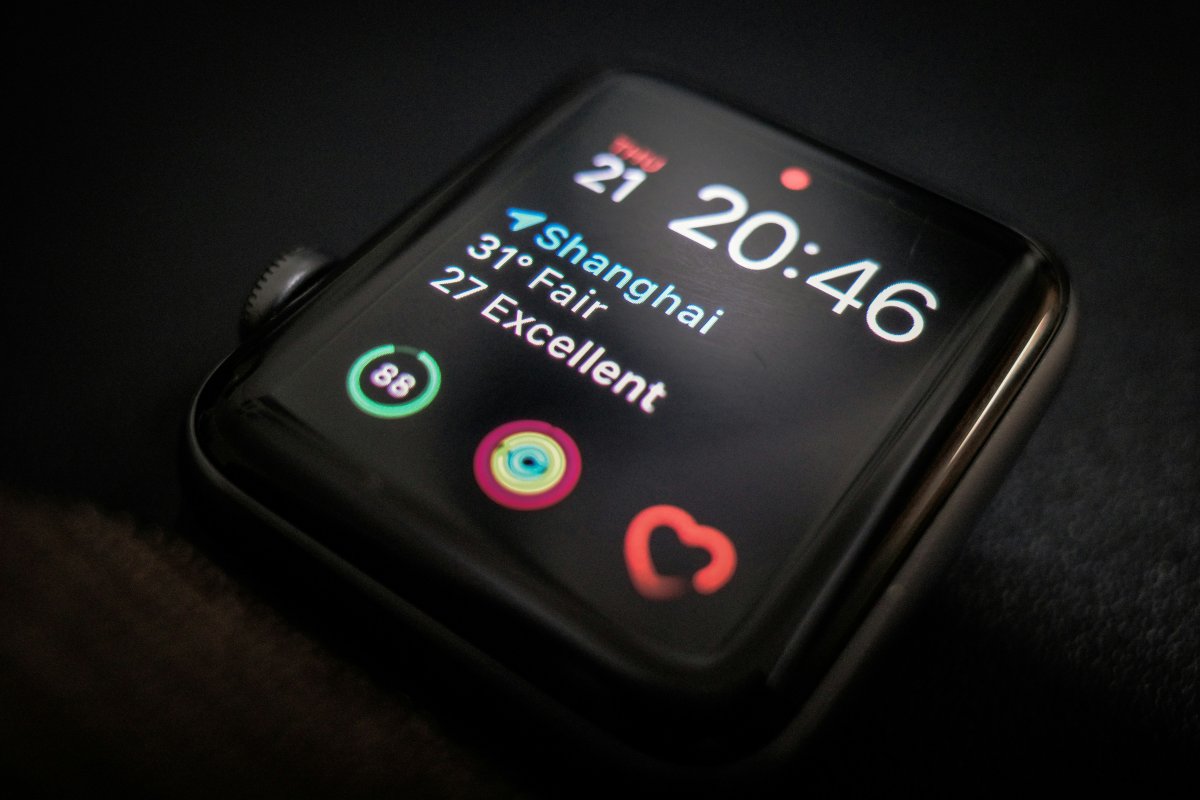
Your Apple Watch can show messages, health data, calendar alerts, location tools, payment options and app notifications from your wrist. That is what makes it useful, but it also means your privacy settings matter.
The good news is that Apple Watch privacy settings are not hard to manage. A few simple checks can make your watch safer and more private for everyday use.
Set a Passcode
The first Apple Watch security setting to check is your passcode.
A passcode helps protect your watch when it is removed from your wrist. It is also important for features like Apple Pay and personal data protection.
Open the Watch app on iPhone or Settings on Apple Watch and check your passcode settings. Choose a code you can remember, but avoid something too obvious.
Turn On Wrist Detection
Wrist Detection helps your Apple Watch know when it is being worn.
When it is turned on, your watch can lock automatically after you take it off. This protects notifications, Health data and other personal information.
For most users, Wrist Detection should stay on. Turning it off can make the watch less secure and may affect some health and activity features.
Check Notification Privacy
Apple Watch notification privacy is important because alerts appear directly on your wrist.
If you do not want message previews or sensitive details to show immediately, adjust notification settings. You can limit previews, choose which apps can send alerts and turn off notifications that do not need to appear on your watch.
This is especially useful if you wear your watch at work, school, public places or around other people.
Review Location Settings
Many apps request location access, but not every app needs it.
Review Apple Watch location settings from your iPhone privacy settings and check which apps can use your location. Maps, weather, workouts and Find My may need location to work well. Other apps may not.
A good habit is simple: allow location only when it clearly improves the app experience.
Review Health Permissions
Apple Watch can collect and share health related data such as heart rate, workouts, sleep, activity and other fitness information.
Check Apple Watch health permissions in the Health app on iPhone. Review which apps can read or write health data. Fitness and health apps may need access, but you should still know what they can see.
After installing a new health or fitness app, always review its permissions.
Check Siri Settings
Siri can be useful on Apple Watch, but you may want to control how it activates.
Check whether Siri responds to voice, button presses or raise to speak. If you do not use Siri often, you can turn off the activation methods you do not need.
This is not only about privacy. It also helps prevent accidental Siri activation during the day.
Review App Permissions
Every app you install may request different access.
Some apps may ask for notifications, location, microphone, Health data, calendar or contacts. Do not approve everything automatically. Ask whether the permission makes sense for what the app does.
This is one of the most important Apple Watch privacy tips: review permissions after installing new apps, not only during initial setup.
Use Find My
Find My can help locate your Apple Watch if you lose it.
Make sure Find My is enabled on your Apple devices. This is useful if your watch is misplaced at home, left in a bag or lost while traveling.
Find My is not only a convenience feature. It is also part of a safer Apple device setup.
What to Review Regularly
Privacy settings are not something you check once and forget forever.
Every few weeks, review notifications, app permissions, Health access, location access and apps you no longer use. Remove apps that are not useful and turn off permissions that no longer make sense.
This keeps your Apple Watch cleaner, safer and easier to manage.
Conclusion
Checking Apple Watch privacy settings helps protect the personal information you carry on your wrist every day.
Start with passcode, Wrist Detection, notification privacy, location settings, Health permissions, Siri, app permissions and Find My. Then review them regularly after installing new apps.
A private Apple Watch setup is not about turning everything off. It is about giving access only to the features and apps that truly need it.