A new Apple Watch can feel useful right away, but the default setup is not always the best setup for daily life. Some settings may send too many notifications, wake the screen too often, use battery in the background or make the watch feel less private than you want.
That is why it helps to know the Apple Watch settings you should change first. You do not need to adjust every menu or become a watchOS expert. A few smart changes can make your Apple Watch calmer, easier to read, better for battery life and more comfortable on your wrist.
This guide covers the most practical Apple Watch settings to change first, including wake settings, notifications, Background App Refresh, passcode, privacy, haptics, display brightness, app view and fitness preferences. The goal is simple: make your Apple Watch feel more useful without making it complicated.
Apple Watch Settings You Should Change First
The best Apple Watch settings are the ones that match how you actually use the device.
Some people want maximum battery life. Some want fewer interruptions. Some want stronger health tracking. Others care most about privacy, display comfort or faster access to apps. There is no perfect setup for everyone, but there are several settings almost every user should review.
Start with these areas:
- Wake settings
- Notifications
- Background App Refresh
- Passcode and wrist detection
- Privacy settings
- Haptics and sound
- Display brightness and text size
- App view
- Fitness and activity preferences
You can adjust these gradually. The goal is not to turn off every feature. The goal is to remove what feels annoying and keep what makes the watch useful.
1. Adjust Wake Settings
Wake settings control when your Apple Watch screen turns on.
This matters because the display affects both battery life and comfort. If the screen wakes too often, your watch may feel distracting. If it does not wake when you expect it to, the experience can feel slow.
Open the Settings app on Apple Watch, then look for Display and Brightness. You can review options such as Wake on Wrist Raise and Wake Duration. Some users like the screen to wake whenever they raise their wrist. Others prefer a more controlled experience, especially during work, meetings or sleep.
For everyday use, a good setup is usually simple. Keep Wake on Wrist Raise enabled if you like quick glances. Reduce wake duration if you want the display to stay on for less time. If your model supports Always On display and battery life matters more than constant visibility, consider turning it off or using it only when needed.
This is one of the best Apple Watch settings to change first because it affects how the watch feels every time you look at it.
2. Clean Up Apple Watch Notification Settings
Notifications are one of the biggest reasons people buy an Apple Watch, but they are also one of the biggest reasons people get annoyed by it.
By default, your watch may mirror many notifications from your iPhone. That sounds helpful at first, but not every alert deserves to tap your wrist.
Open the Watch app on your iPhone and go to Notifications. Review each app and decide what truly needs to appear on your watch.
Useful Apple Watch notifications usually include:
- Messages from important people
- Phone calls
- Calendar events
- Reminders
- Health alerts
- Delivery or travel updates
- Banking or security alerts
Notifications that usually do not need your wrist include promotions, random social media alerts, shopping updates, game alerts and low priority app messages.
A good rule is simple: if you do not need to act on it quickly, it probably does not need to appear on Apple Watch.
This setting alone can make your watch feel much calmer.
3. Review Background App Refresh
Background App Refresh allows apps to update content even when you are not actively using them.
This can be useful for apps you rely on often, such as weather, fitness, calendar or reminders. But if too many apps refresh in the background, it can add unnecessary battery use and clutter.
Go to the Watch app on your iPhone, then General and Background App Refresh. Review the list and turn off background refresh for apps you rarely use on your watch.
You do not need to disable everything. Keep it on for apps that benefit from fresh information. Turn it off for apps that do not need to update until you open them.
This is one of the most practical Apple Watch recommended settings because it helps balance convenience and battery life.
4. Set a Passcode and Keep Wrist Detection On
Your Apple Watch can contain sensitive information, including notifications, health data, Wallet access and personal app content. That makes passcode and security settings important.
Set a passcode if you have not already. It helps protect your watch if it is removed from your wrist or lost. Wrist Detection is also worth keeping on because it helps the watch know when it is being worn.
With Wrist Detection enabled, Apple Watch can lock automatically when removed. This is especially important if you use Wallet, health features or private notifications.
A passcode may feel like a small detail, but it supports privacy, security and payment safety. For most users, this is one of the Apple Watch setup settings that should not be skipped.
5. Check Apple Watch Privacy Settings
Privacy settings are easy to ignore, but they are worth reviewing.
Apple Watch can collect and show sensitive information, especially around health, fitness, location and notifications. You do not need to turn off every permission, but you should understand what your watch is allowed to access.
Useful areas to review include:
- Location Services
- Health permissions
- Fitness tracking
- Analytics sharing
- Siri history or Siri related settings
- App permissions
- Notification previews
If an app does not need your location, health data or motion information, you can limit access. If you do not want personal messages showing clearly on your wrist, adjust notification previews.
Apple Watch privacy settings are not about fear. They are about control. Your watch should show and share only what makes sense for your daily use.
6. Improve Haptics and Sound
Haptics are the small taps you feel on your wrist. For many people, they are one of the best parts of Apple Watch.
Go to Settings on your watch and review Sounds and Haptics. You can adjust alert volume, turn on Silent Mode and choose how strong haptic alerts feel.
Many users prefer Silent Mode with haptics. It keeps alerts private and less disruptive while still making sure you notice important notifications.
If you often miss alerts, increase haptic strength. If the watch feels too aggressive, reduce alerts or make notifications more selective.
Good haptic settings make Apple Watch feel helpful without being loud or distracting.
7. Adjust Display Brightness, Text Size and Bold Text
Display settings can make Apple Watch easier to read and more comfortable to use.
If the screen feels too bright indoors or too dim outdoors, adjust brightness. If text feels small, increase text size. If you want better readability, consider enabling Bold Text.
These changes are especially useful for people who check messages, calendar events, weather, timers and workout stats often.
The best display setting is not always the brightest one. A comfortable display is easier on your eyes and may also help with battery life depending on your usage.
This is one of the simplest Apple Watch settings to change first, but it can make the watch feel much better immediately.
8. Choose the App View That Feels Easier
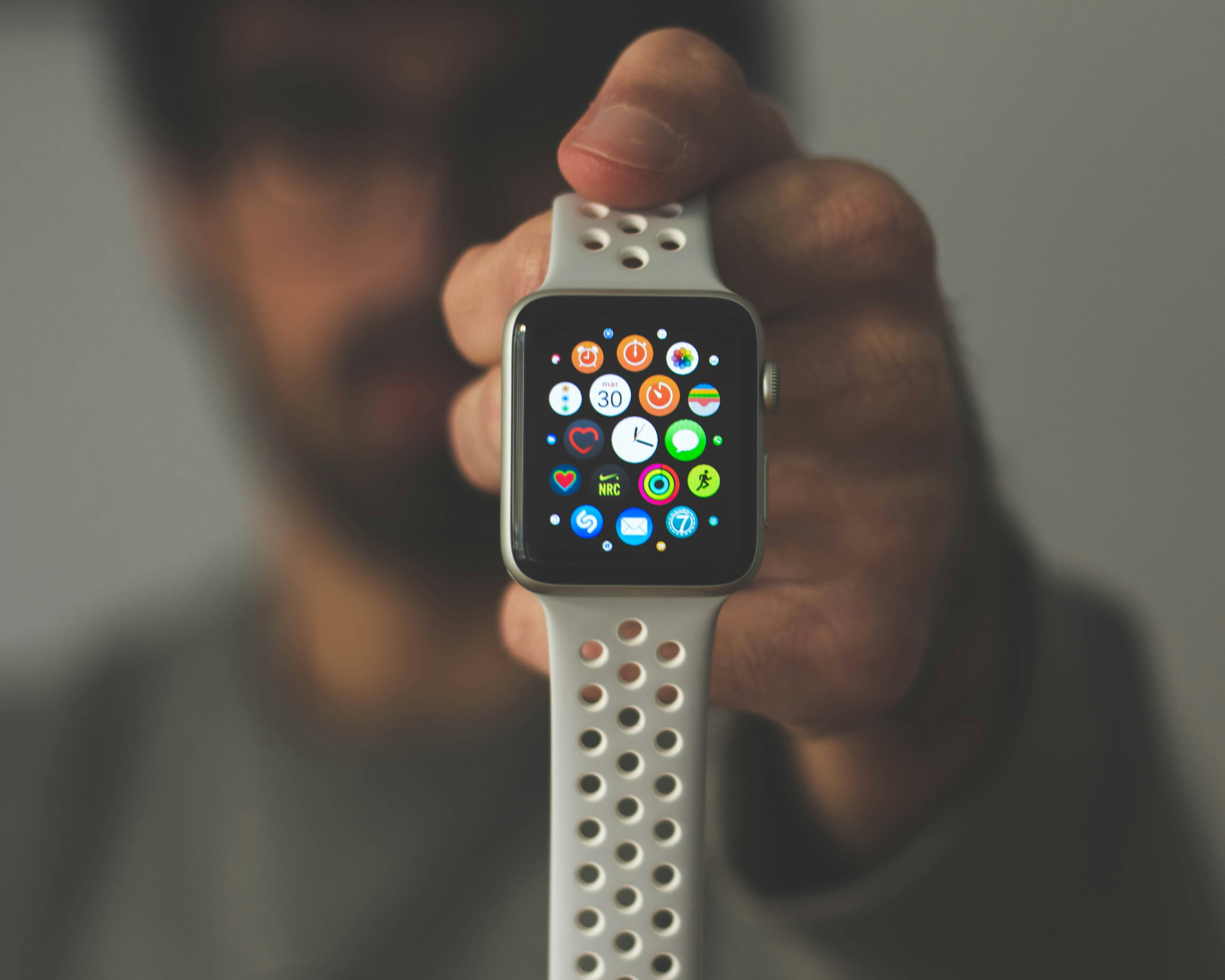
Apple Watch offers different ways to view apps. Many users start with Grid View, which shows app icons in a cluster. It looks nice, but it can feel confusing if you do not recognize every icon.
List View is often easier because it shows app names clearly. If you are new to Apple Watch or simply want a cleaner layout, List View may be better.
You can change this from the app screen or through settings depending on your watchOS version.
There is no right answer. Choose the view that helps you open apps faster. Apple Watch should feel quick, not like a puzzle.
9. Adjust Fitness and Activity Preferences
Fitness settings are worth reviewing even if you are not a serious athlete.
Apple Watch can track movement, workouts, standing, heart rate and other health related activity. But if the goals or reminders do not match your life, they may feel annoying instead of helpful.
Review your Activity goals and adjust them if needed. A realistic goal is better than an impressive goal you ignore. You can also review coaching notifications, stand reminders, workout reminders and heart rate alerts.
For beginners, the best approach is to keep the features that encourage healthy movement and turn off anything that feels like noise.
Apple Watch fitness preferences should support your habits, not pressure you all day.
10. Customize Quick Settings in Control Center
Control Center gives you fast access to important Apple Watch settings. It is one of the most useful areas to understand early.
Depending on your watchOS version and layout, you can access settings such as Silent Mode, Focus, Theater Mode, Water Lock, Flashlight, Airplane Mode, battery percentage and Ping iPhone.
You can also organize Control Center so the tools you use most are easier to reach. For many users, the most useful controls are:
- Silent Mode
- Focus
- Theater Mode
- Water Lock
- Flashlight
- Battery
- Ping iPhone
Control Center is useful because it saves time. Instead of opening settings again and again, you can change common options quickly.
Best Apple Watch Settings for a Better Daily Experience
If you want a simple recommended setup, start with this:
- Keep important notifications only
- Turn off alerts from noisy apps
- Review Background App Refresh
- Use a passcode
- Keep Wrist Detection on
- Review privacy permissions
- Use Silent Mode with haptics if you prefer private alerts
- Adjust text size for easier reading
- Use List View if Grid View feels confusing
- Set realistic Activity goals
This setup works well for many users because it improves comfort, battery life, privacy and daily usability without removing the features that make Apple Watch useful.
You can always adjust later. The best Apple Watch settings are the ones you actually enjoy using.
Things to Know Before Changing Too Many Settings
It can be tempting to change everything at once, but that can make it harder to know what helped.
Start with the settings that affect your experience most: notifications, display, haptics and battery related options. Then adjust privacy, app view and fitness preferences.
Do not turn off features just because someone says they save battery. Some features are worth keeping if you use them every day. For example, Wake on Wrist Raise, workout tracking and important health alerts may be valuable even if they use some power.
Also remember that Apple Watch settings can vary slightly by model, watchOS version and region. If you do not see a setting in the exact place described, search for it in the Settings app or the Watch app on iPhone.
The goal is not a perfect setup. The goal is a watch that feels useful, calm and personal.
Who This Guide Is Best For
This guide is best for new Apple Watch users who finished setup but are not sure what to adjust next.
It is also useful for existing users who feel their watch is too distracting, too bright, too busy or not private enough. If your Apple Watch feels like it sends too many alerts or drains battery faster than expected, these settings are a good place to start.
Productivity users can benefit from cleaner notifications and Control Center shortcuts. Fitness users can improve Activity and workout preferences. Privacy focused users should review passcode, Wrist Detection, notification previews and app permissions.
Even small changes can make Apple Watch feel much better in daily use.
Conclusion
The Apple Watch settings you should change first are the ones that improve daily comfort: notifications, wake settings, display, haptics, privacy, Background App Refresh, app view and fitness preferences.
You do not need to change everything at once. Start with the settings that affect your day the most. Turn off noisy notifications, improve readability, protect your privacy, reduce unnecessary background activity and make quick settings easier to reach.
A better Apple Watch experience usually comes from small adjustments. Once your settings match your routine, the watch feels less distracting and much more useful.