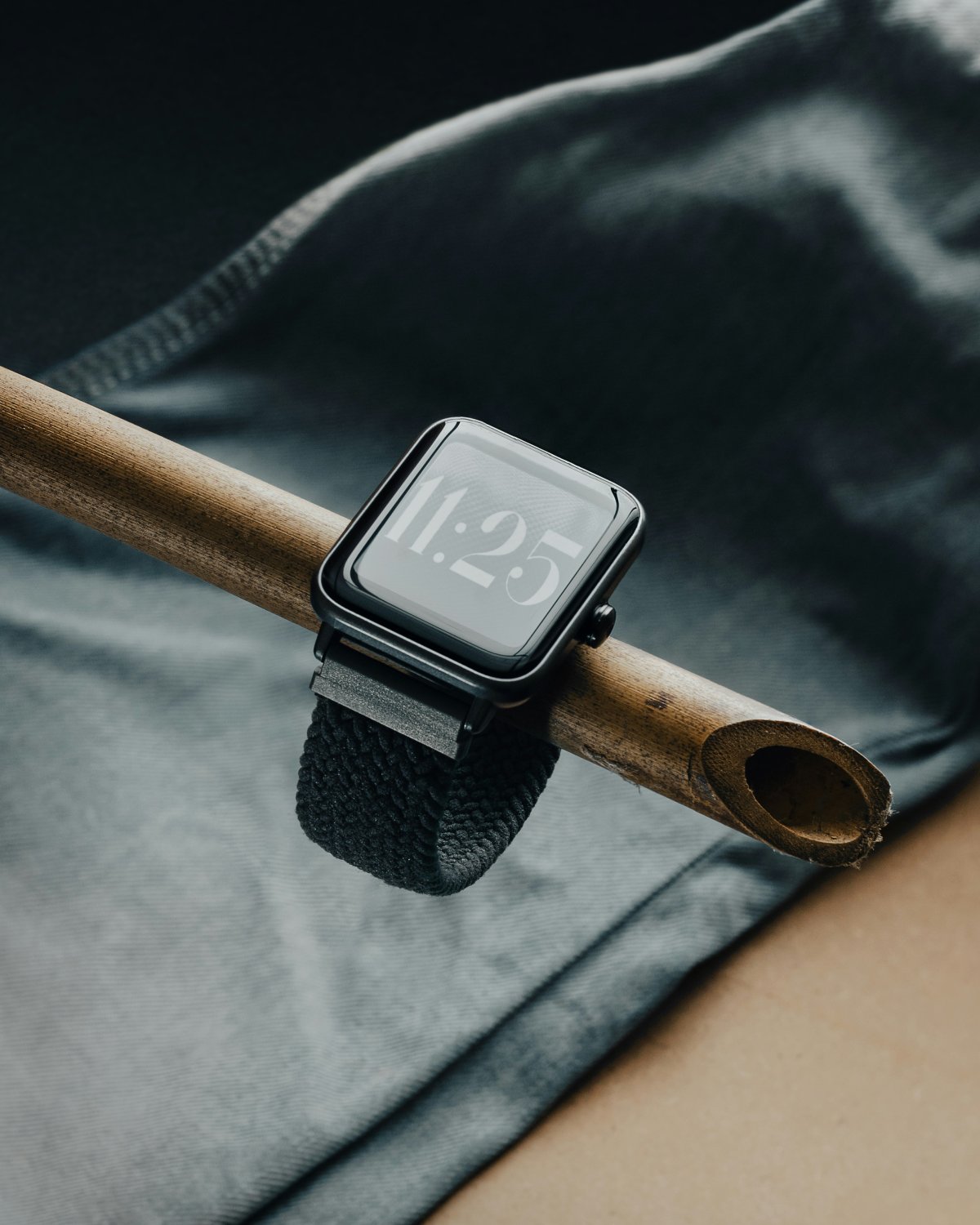
The best Apple Watch accessibility settings can make the watch easier to see, hear and control. These settings are useful for seniors, users with vision or hearing needs and anyone who simply wants Apple Watch to feel more comfortable in daily use.
Accessibility is not only for serious limitations. Larger text, stronger haptics, reduced motion and easier button controls can help many people use Apple Watch with less effort.
You can find most of these options in the Settings app on Apple Watch, or in the Watch app on iPhone under Accessibility.
Make Text Larger
If Apple Watch text feels too small, start with text size.
Go to Accessibility or Display settings and increase text size. This makes supported text easier to read in apps, menus and notifications.
Apple Watch large text is especially helpful for messages, reminders, settings and health information. If you often bring the watch close to your face to read it, larger text is one of the first settings to change.
Turn On Bold Text
Bold Text makes letters thicker and easier to notice.
This can help if normal text looks too thin or hard to read at a glance. It works well with larger text, especially for people who want clearer labels and menu items.
If you want Apple Watch easier to use without changing everything, try larger text and Bold Text together first.
Reduce Motion
Reduce Motion can make Apple Watch feel calmer.
Some animations and movement effects may be reduced, which can help users who feel distracted or uncomfortable with motion on screen. It can also make the interface feel more direct.
This is a simple setting, but it can improve comfort if you prefer less visual movement.
Use VoiceOver
Apple Watch VoiceOver is a screen reader that speaks what is on the display.
It is designed for users who are blind or have low vision. VoiceOver can read text, buttons, notifications and interface elements, helping users navigate the watch by listening instead of relying only on sight.
VoiceOver takes time to learn because gestures work differently when it is active. If you need spoken feedback, it is one of the most important Apple Watch accessibility settings.
Try AssistiveTouch
Apple Watch AssistiveTouch helps users control the watch with hand gestures.
It can be useful for people who have difficulty touching the screen or pressing buttons. Depending on the model and setup, AssistiveTouch can support gestures such as clench, double clench, pinch or double pinch to control different actions.
This makes Apple Watch more flexible for users who need another way to interact with the device.
Adjust Haptics
Haptics are the taps you feel on your wrist.
If you miss alerts, make sure Haptic Alerts are turned on. You can also choose stronger haptic feedback where available. This helps notifications, timers, alarms and important alerts stand out more clearly.
Stronger vibration is useful if you keep the watch in Silent Mode, work in noisy places or often miss subtle taps.
Change Button Speed
Some users find double clicking or pressing Apple Watch buttons difficult.
Accessibility settings can help adjust button behavior, such as click speed or response timing where available. This can make the side button and Digital Crown easier to use.
If Apple Watch feels too sensitive or too fast, button speed settings are worth checking.
Use Accessibility Shortcuts
Accessibility Shortcuts help you turn certain features on quickly.
Instead of going through menus every time, you can assign a shortcut for features like VoiceOver or AssistiveTouch. This is helpful if you only need a feature sometimes.
For example, you may want VoiceOver in certain situations, stronger support during travel or easier control during a specific activity.
Build a Comfortable Setup
The best accessibility setup depends on your needs.
For easier reading, use larger text, Bold Text and a clear watch face. For hearing or alert awareness, use stronger haptics and visible alerts. For easier control, try AssistiveTouch, button speed settings and accessibility shortcuts.
Small changes can make Apple Watch feel much more comfortable every day.
Conclusion
The best Apple Watch accessibility settings are the ones that make the watch easier for you to see, hear and control.
Start with larger text, Bold Text, Reduce Motion, haptics and a clear watch face. Then explore VoiceOver, AssistiveTouch, button speed and accessibility shortcuts if you need more support.
Apple Watch becomes much more useful when it feels comfortable, readable and easy to control throughout the day.