The best Apple Watch apps for remote work are the ones that help you manage small work moments faster. Remote work often means meetings, messages, tasks, documents, quick searches and reminders happening throughout the day. Apple Watch can make those moments easier to handle without opening your iPhone every time.
The goal is not to turn your watch into a full laptop replacement. It is to make common work actions easier from your wrist: checking your next meeting, seeing an important message, opening a document, asking for quick writing help or setting a reminder before you forget.
Here are useful Apple Watch remote work apps worth considering.
1. Fantastical
Fantastical is a strong calendar option for remote workers who live around meetings and schedules.
On Apple Watch, a good calendar app helps you see what is coming next without checking your phone constantly. This is useful when you are moving between calls, taking a break, working from a cafe or trying to stay on time during a busy day.
Fantastical can help with meeting visibility, daily planning and quick schedule checks from your wrist. For remote workers, that small calendar access can make the workday feel more organized.
Best for: meetings, schedules, calendar checks and daily planning.
2. Slack or Microsoft Teams Notifications
For many remote workers, team communication happens through Slack or Microsoft Teams.
Apple Watch is useful for seeing important work messages quickly. You can check who sent a message, understand whether it needs attention and decide if you should reply now or later.
The best setup is not to send every work alert to your wrist. Choose important channels, direct messages or meeting related notifications. This keeps Apple Watch helpful instead of distracting.
Best for: team messages, urgent alerts and quick communication awareness.
3. Wiri: GPT AI Chatbot for Watch
Wiri: GPT AI Chatbot for Watch is useful when you want quick AI support from your wrist.
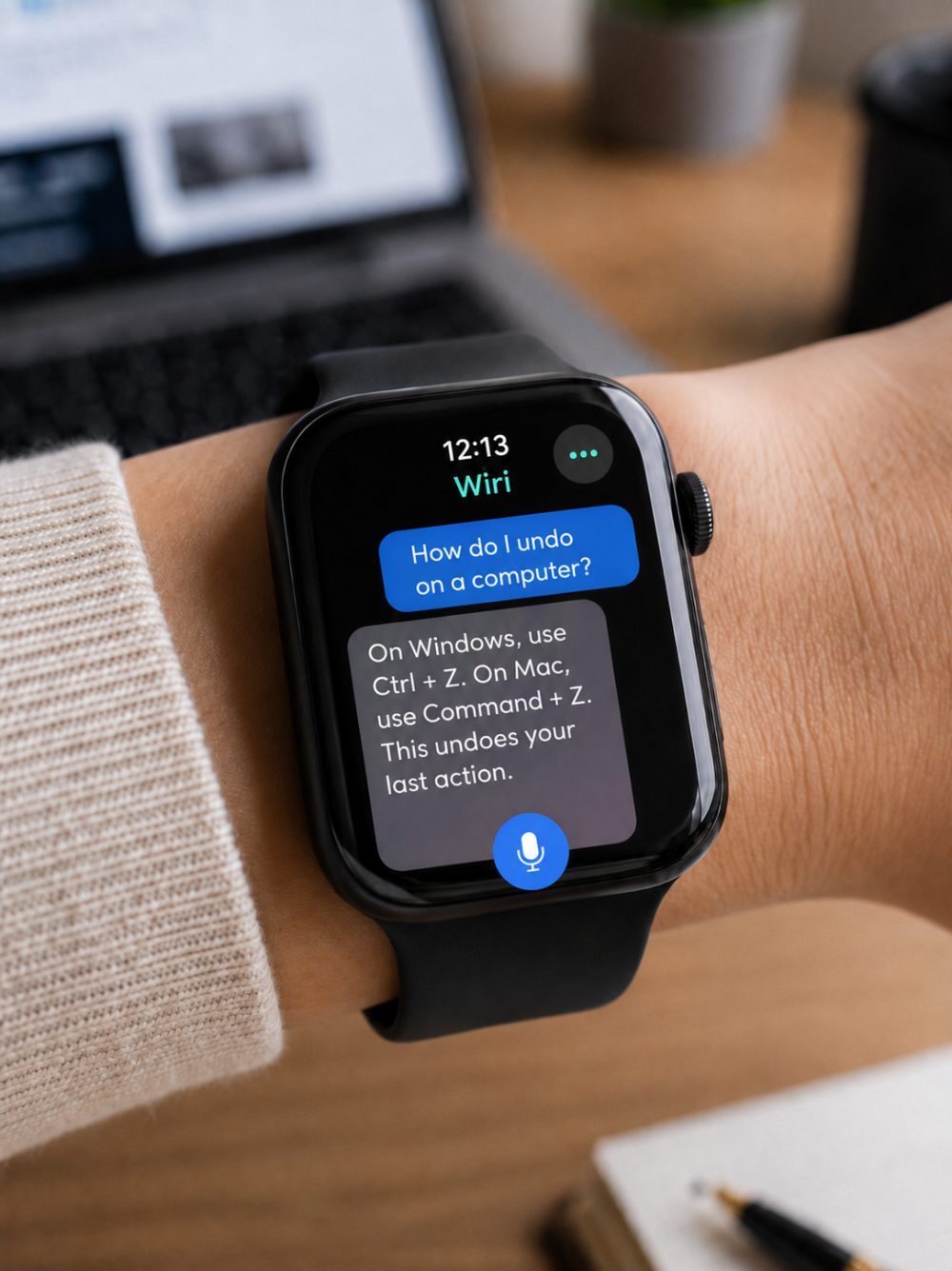
For remote work, this can help with short writing ideas, message drafts, quick explanations, task wording, meeting follow up ideas or simple productivity prompts. It is especially helpful when you want to capture an idea or get a fast starting point without switching devices.
A practical option is:
https://apps.apple.com/us/app/wiri-gpt-ai-chatbot-for-watch/id6758810005
For example, you can ask for a shorter message, a quick reply idea, a simple summary prompt or a clearer way to phrase a work note. This makes Wiri a practical Apple Watch AI assistant for work.
Best for: quick writing help, ideas, short explanations and productivity prompts.
4. WristDocs : PDF Watch Viewer
Remote workers often need quick access to documents, notes, PDFs, meeting files or reference pages.
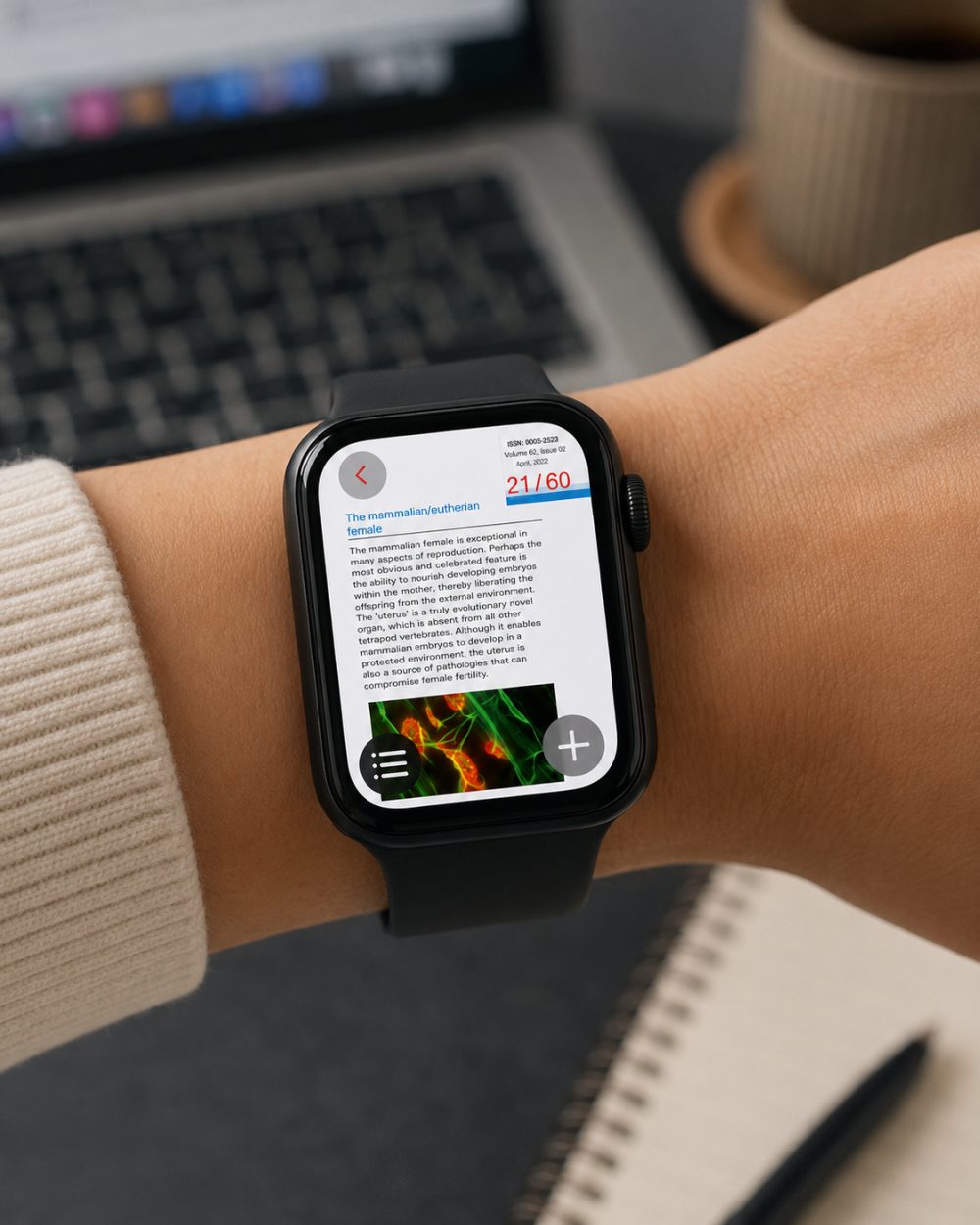
WristDocs : PDF Watch Viewer helps by making selected documents available from your Apple Watch. You can prepare a PDF on your iPhone, send it to your watch and open it from your wrist when needed.
A practical option is:
https://apps.apple.com/us/app/pdf-watch-viewer-wristdocs/id6745387064
This can be useful for meeting notes, client details, checklists, schedules, work instructions, event files or short reference documents. WristDocs also supports searching inside a PDF from Apple Watch, which is helpful when you need to find a specific word, section or detail quickly.
Best for: PDFs, meeting notes, work documents and quick document reference.
5. WristNet : Watch Web Browser
Sometimes remote work requires a quick web lookup.
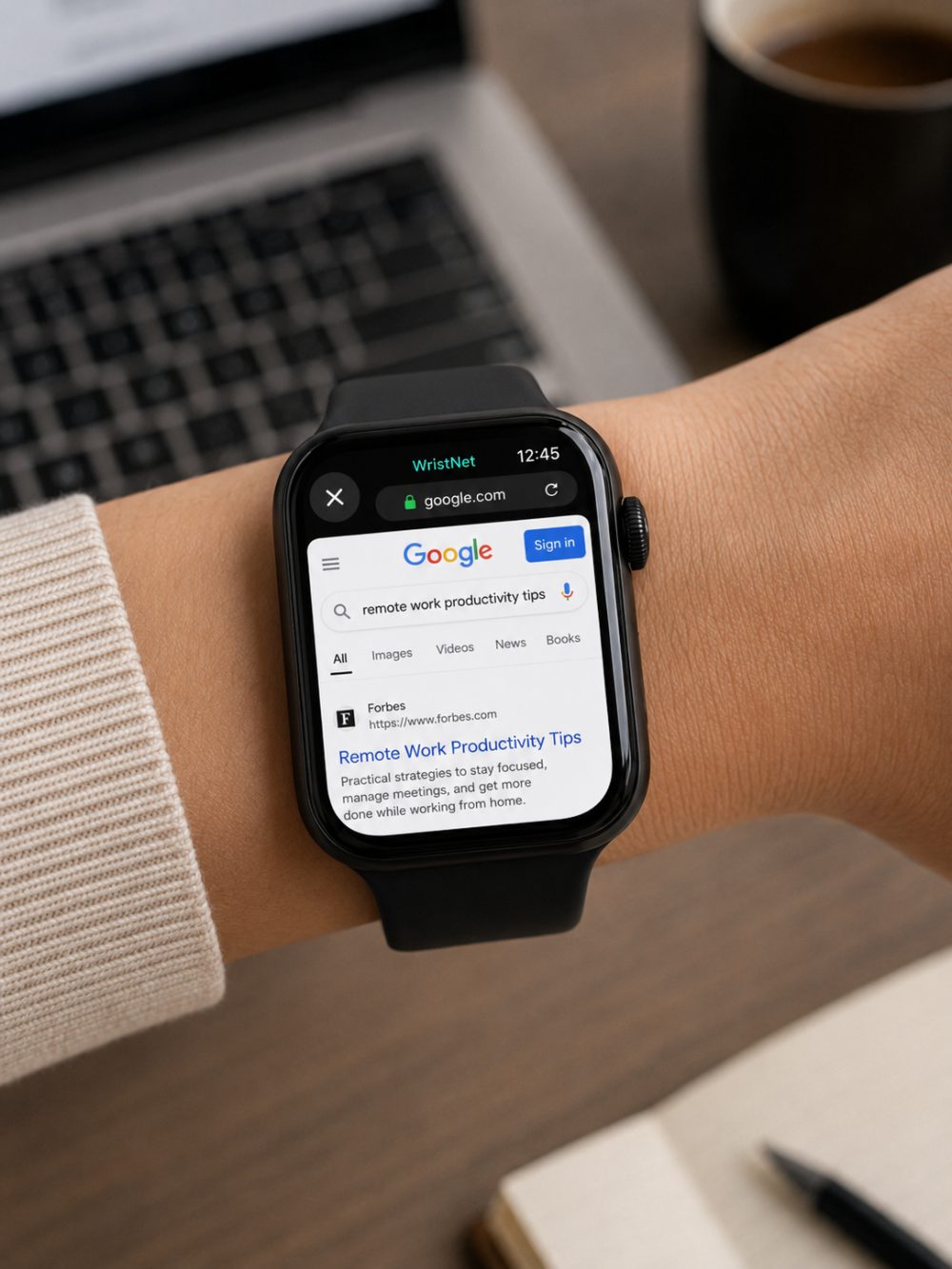
Watch Web Browser : WristNet gives Apple Watch browser access for opening websites, searching the web and checking links from your wrist. This is useful when you need to look up something quickly, open a page, check a web based tool or revisit a saved link.
A practical option is:
https://apps.apple.com/us/app/watch-web-browser-wristnet/id6747051754
For remote work, WristNet can be helpful when you want fast access to information without breaking your flow. It adds a browsing layer to Apple Watch, which pairs well with AI help from Wiri and document access from WristDocs.
Best for: quick web lookup, links, bookmarks and browser based work pages.
6. Reminders
Apple Reminders is simple, but it can be one of the most useful Apple Watch work productivity tools.
Remote workers often need to remember small things: send a file, reply to a message, follow up after a call, check a task, prepare for a meeting or take a break. Apple Watch makes these reminders harder to miss because they appear on your wrist.
You can also use Siri to create reminders quickly. This is useful when you are walking, cooking, moving between rooms or away from your desk.
Best for: follow ups, task reminders, daily work habits and quick capture.
How These Apps Work Together
A strong remote work Apple Watch setup does not need dozens of apps.
Use Fantastical for meetings. Use Slack or Teams notifications for important communication. Use Wiri for quick AI help. Use WristDocs for documents. Use WristNet for web lookup. Use Reminders for tasks you do not want to forget.
Together, these apps make Apple Watch more useful during the workday. You can stay aware of meetings, messages and tasks while keeping your iPhone out of your hand more often.
Tips for a Better Remote Work Setup
Keep notifications selective. If every work app sends alerts to your wrist, Apple Watch becomes distracting. Choose only the alerts that help you act faster.
Add calendar, reminders or weather to your watch face if they matter during your day. Keep Wiri, WristDocs and WristNet easy to open if you use AI, documents or web lookup often.
The best remote work Apple Watch setup is focused. It should help you move through the day with less friction, not create another screen to manage.
FAQ
What are the best Apple Watch apps for work?
The best Apple Watch apps for work are apps that help with meetings, messages, tasks, documents and quick information. Fantastical is useful for calendar planning, Slack or Teams notifications help with communication, Wiri helps with quick AI writing support, WristDocs helps with PDFs and WristNet helps with web lookup. Reminders is also useful for follow ups and small tasks.
How do you view work documents on Apple Watch?
You can view work documents on Apple Watch with a dedicated document viewer like WristDocs. Prepare the PDF or document on your iPhone, send it to Apple Watch and open it from your wrist when needed. This works well for meeting notes, checklists, schedules, work instructions and short reference files. WristDocs can also help you search inside PDFs from the watch.
Can AI help with writing on Apple Watch?
Yes. An AI app like Wiri can help with quick writing ideas from Apple Watch. You can use it for short replies, message drafts, meeting follow up ideas, clearer wording or simple explanations. It is useful when you want a fast starting point from your wrist during the workday.
What productivity apps work on Apple Watch?
Useful Apple Watch productivity apps include calendars, reminders, communication apps, AI assistants, document viewers and browser apps. For remote work, Fantastical, Reminders, Slack or Teams notifications, Wiri, WristDocs and WristNet cover many daily needs: meetings, tasks, messages, documents, AI help and quick web lookup.
How do you reduce phone distractions with Apple Watch?
Use Apple Watch to receive only the notifications that matter. Turn off low value alerts and keep work notifications selective. Add calendar and reminders to your wrist so you do not need to check your phone as often. Apps like Wiri, WristDocs and WristNet can also help you handle quick work needs without fully switching back to your iPhone.
Conclusion
The best Apple Watch apps for remote work help you manage small work moments more easily.
Fantastical helps with meetings. Slack or Teams notifications help with communication. Wiri adds quick AI writing help. WristDocs keeps documents close. WristNet helps with web lookup. Reminders keeps tasks from slipping away.
A focused setup can make Apple Watch a practical remote work tool, especially when you want quick access without constantly reaching for your phone.