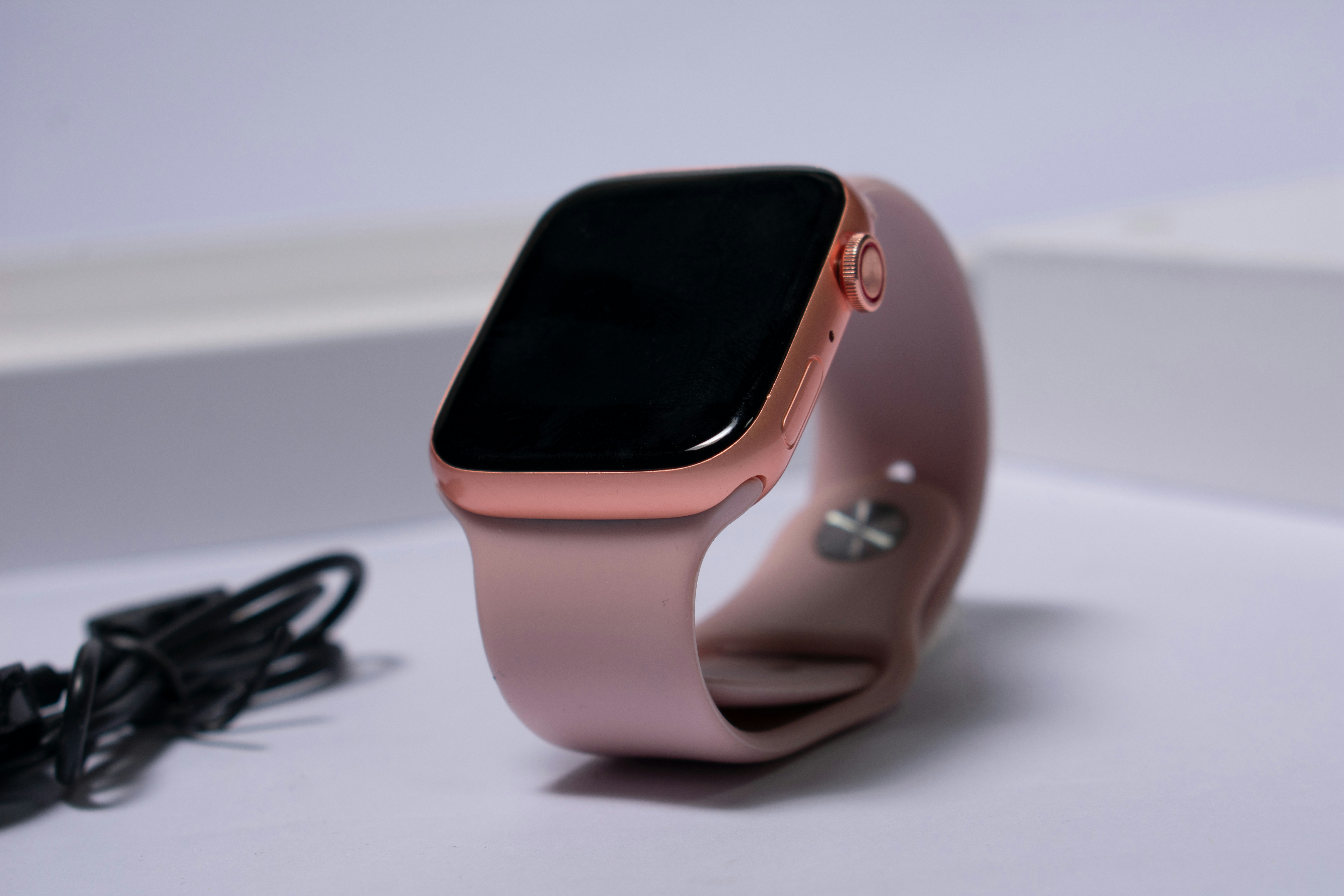
If your Apple Watch does not last as long as you expect, the right settings can make a noticeable difference. You do not need to turn your watch into a limited device or disable every useful feature. The goal is to reduce unnecessary battery use while keeping the features you actually enjoy.
The best Apple Watch settings for battery life usually involve the display, notifications, background activity, cellular use, workout tracking and Low Power Mode. These are the areas that most often affect daily battery performance.
It is also important to stay realistic. No setting can magically double battery life in every situation. A day with long GPS workouts, cellular use, music streaming and constant notifications will drain faster than a quiet day near your iPhone. Still, a few smart changes can help your Apple Watch feel more reliable and less stressful to manage.
Best Apple Watch Settings for Battery Life
The best Apple Watch battery settings are not about turning everything off. They are about choosing which features deserve power and which ones are quietly wasting it.
Start with the settings that affect the watch most often:
- Always On Display
- Screen brightness
- Wake duration
- Background App Refresh
- Notifications
- Cellular usage
- Workout settings
- Low Power Mode
These settings are safe to adjust because you can always turn them back on later. Try one or two changes first, then watch how your battery performs during a normal day.
1. Review Always On Display
Always On Display is convenient because it lets you see the time and basic information without raising your wrist. But it can also use more battery because the screen stays visible more often.
If your Apple Watch battery is draining faster than you want, test this setting first. Open Settings on your Apple Watch, go to Display and Brightness, then review Always On.
You do not have to turn it off forever. Try disabling it for one full day and compare the result. If battery life improves and you do not miss the feature, keeping it off may be worth it. If you love always seeing the time at a glance, you may decide the battery tradeoff is acceptable.
This is one of the most important Apple Watch battery settings because the display is active throughout the day.
2. Lower Screen Brightness
A brighter screen is easier to read, especially outdoors, but maximum brightness is not always necessary.
Go to Display and Brightness and reduce the brightness slightly. You want the screen to remain comfortable, not dim and frustrating. Even a small adjustment can help if you check your watch often.
This setting is especially useful for people who receive many notifications, use complications frequently or wake the screen many times during the day.
A good rule is simple: use the lowest brightness that still feels comfortable.
3. Shorten Wake Duration
Wake duration controls how long your Apple Watch screen stays on after you tap it or wake it.
If the screen stays active longer than you need, it can waste battery throughout the day. Shortening wake duration is a simple way to reduce display time without changing how you use the watch.
You can find this in Display and Brightness settings. Choose a shorter wake time if you usually glance at your watch quickly.
This setting is useful because Apple Watch is mostly a glance based device. In many cases, you only need a few seconds to check the time, weather, activity rings or a notification.
4. Turn Off Background App Refresh for Apps You Do Not Need
Background App Refresh lets apps update when you are not actively using them. This is useful for some apps but unnecessary for many others.
Open the Watch app on your iPhone, go to General, then Background App Refresh. Review the app list carefully.
Keep background refresh enabled for apps where fresh information matters, such as weather, calendar, reminders or fitness related tools. Turn it off for apps you rarely open on your watch.
This is one of the safest Apple Watch save battery settings because it does not remove the app. It simply stops unnecessary background updating.
If an app only needs to update when you open it, it probably does not need background refresh.
5. Reduce Unnecessary Notifications
Notifications can drain battery in small but repeated ways. Each alert may trigger haptics, wake the screen and make the watch process information.
Open the Watch app on your iPhone and go to Notifications. Keep alerts that need quick attention, such as calls, messages, calendar events, reminders, health alerts and important security notifications.
Turn off notifications from apps that send promotions, random updates, social noise or alerts you never act on.
This helps battery life and makes the watch feel calmer. Even if the battery improvement is modest, the daily experience often becomes much better.
For many users, cleaner Apple Watch notification settings are one of the easiest improvements.
6. Be Careful With Cellular Usage
If you have a cellular Apple Watch, battery life can drop faster when the watch is away from your iPhone.
Cellular uses more power because the watch handles connection, data and communication on its own. Calls, messages, maps, streaming and app activity over cellular can all increase battery drain.
You do not need to avoid cellular completely. It is useful for runs, quick errands and times when you do not want to carry your phone. But if battery life matters, keep your iPhone nearby when possible and avoid long calls or streaming directly from the watch.
If your battery only drains fast when you leave your phone behind, cellular usage is probably one of the main reasons.
7. Adjust Workout Battery Habits
Workouts can use more battery because Apple Watch tracks heart rate, movement, time, calories and sometimes GPS. Outdoor workouts usually drain more than indoor workouts because location tracking is involved.
If you do long workouts, start with enough battery. Avoid streaming over cellular during long sessions if you need the watch to last. When the workout is finished, make sure you end it instead of letting it continue in the background.
Low Power Mode can also help during longer days or workouts, depending on your settings and watch model.
Do not turn off useful fitness features just to save a small amount of power. Apple Watch is valuable because it tracks health and activity. Adjust only what causes a real battery problem.
8. Use Low Power Mode When It Makes Sense
Low Power Mode is one of the most useful Apple Watch low power settings. It reduces certain features to extend battery life when you need it.
You can turn it on from Control Center or Battery settings. It is useful during travel, long workdays, outdoor activities, festivals, long workouts or any time you cannot charge soon.
Low Power Mode is not something every user needs all day. For normal daily use, you may prefer the full Apple Watch experience. But when the battery is low or you know the day will be long, it can be a practical safety net.
Think of it as a temporary tool, not a permanent setting.
A Simple Recommended Battery Setup
If you want a practical setup, start with these changes:
- Turn off Always On Display if you do not need it
- Lower brightness slightly
- Use a shorter wake duration
- Disable Background App Refresh for unused apps
- Turn off noisy notifications
- Keep your iPhone nearby when possible
- Avoid long cellular streaming from the watch
- Use Low Power Mode during long days
This setup keeps Apple Watch useful while reducing unnecessary battery use.
The best Apple Watch settings for battery life depend on your habits. A fitness user, traveler and office worker may all need different setups. The right approach is to test changes during your normal routine and keep the ones that help.
Things to Know Before Changing Battery Settings
Battery life is not the same every day. GPS workouts, cellular, music, maps, calls, cold weather, poor signal and heavy app use can all make the battery drain faster.
Do not panic if your Apple Watch battery drops faster on an unusually active day. That may be normal. What matters is the pattern. If the battery drains quickly even during light use, then settings, software or battery health may need closer attention.
Also avoid changing too many settings at once. If you turn off Always On Display, reduce brightness, disable background refresh and change notifications all at the same time, you will not know which setting helped.
Make one or two changes, use your watch normally and compare the result.
Who This Guide Is Best For
This guide is best for Apple Watch users who want better battery life without ruining the everyday experience.
It is useful for people who notice battery drain during workdays, workouts, travel or long days away from a charger. It is also helpful for users who recently bought an Apple Watch and want safe battery settings from the start.
The main idea is balance. Keep the features that make your watch useful and reduce the ones that waste power without giving much value.
Conclusion
The best Apple Watch settings for battery life are the ones that reduce unnecessary power use without making the watch frustrating. Start with Always On Display, brightness, wake duration, Background App Refresh, notifications, cellular habits, workout settings and Low Power Mode.
Do not expect unrealistic battery gains from one setting. Instead, make small changes that fit your routine. When your Apple Watch uses power only where it adds value, battery life becomes easier to manage and the watch feels better every day.