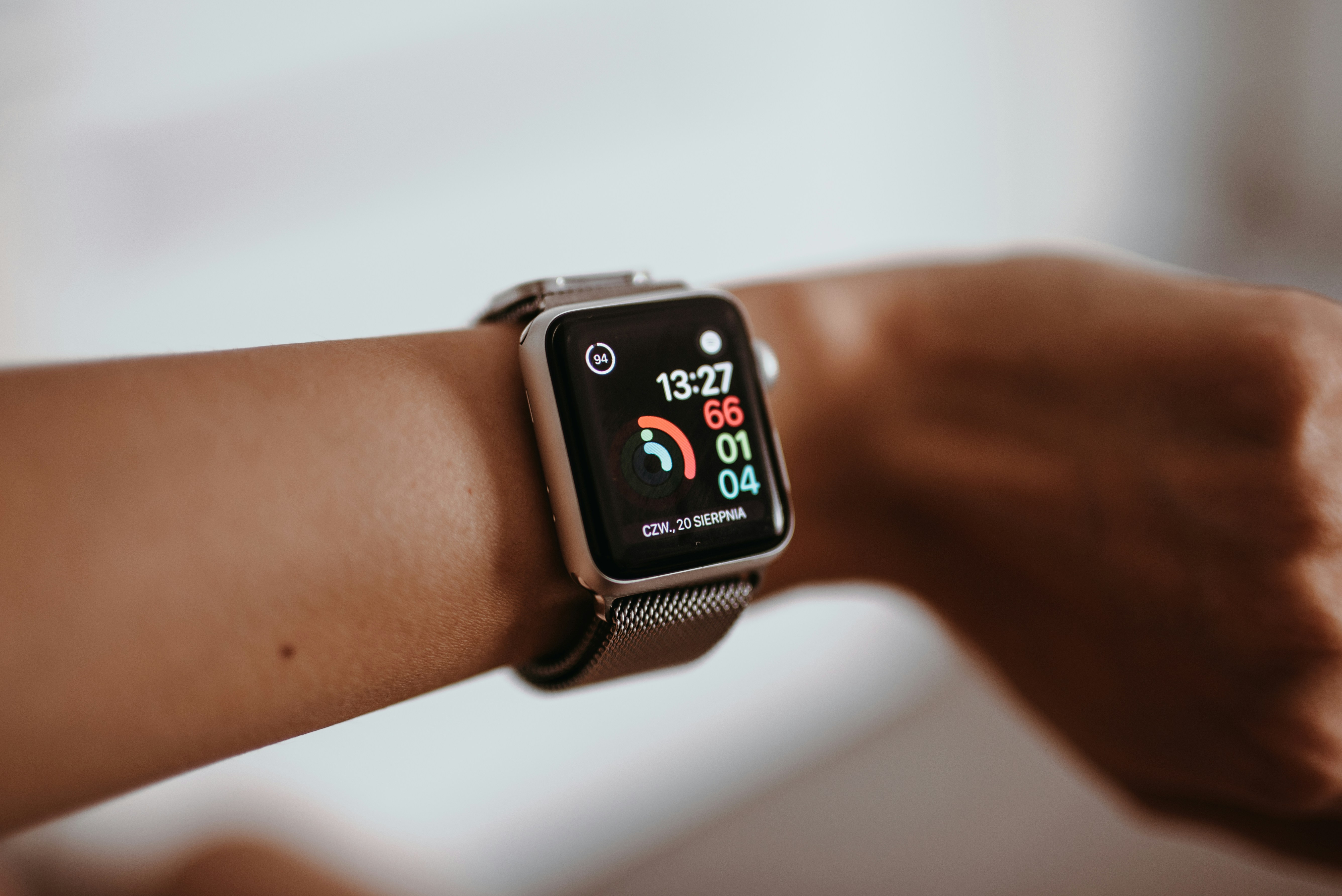
If you just bought your first Apple Watch, it is easy to feel excited and slightly overwhelmed at the same time. There are watch faces, notifications, apps, health settings, Control Center shortcuts, battery options and fitness features all competing for your attention.
The good news is that you do not need to learn everything on day one. The best Apple Watch tips for new users are usually the simple ones: clean up your notifications, choose a useful watch face, understand the basic gestures and set up the features you will actually use every day.
This guide is designed as a practical Apple Watch first time user guide. It will help you set up your watch in a calm, useful way without turning it into another distracting screen. By the end, you will know what to adjust first, which settings matter and how to make your Apple Watch feel genuinely helpful from the start.
Best Apple Watch Tips for New Users: Start With the Basics
The first mistake many new users make is trying to set up everything immediately. Apple Watch becomes much more useful when you start with a few core features and build from there.
Think of your Apple Watch as a quick access device. It is best for checking information, starting simple actions and getting useful alerts without pulling out your iPhone. It is not meant to replace your phone for every task.
Start with these basics:
Choose a clear watch face
Reduce unnecessary notifications
Learn Control Center
Set up health and activity basics
Organize your apps
Build a simple daily routine
Adjust battery draining settings only when needed
Once these are set, your watch will feel cleaner, faster and easier to use.
1. Clean Up Your Notifications First
Notifications are one of the most important Apple Watch setup tips because they can make or break the experience.
By default, your Apple Watch may mirror many iPhone notifications. That sounds useful at first, but it can quickly become annoying. If every app taps your wrist, you may start ignoring the watch completely.
A better approach is to allow only the notifications that deserve your immediate attention.
Good notifications for Apple Watch usually include:
Messages from important people
Calendar alerts
Reminders
Calls
Fitness or health alerts
Important banking, travel or delivery updates
Less useful notifications may include random promotions, social media noise, shopping alerts or apps you rarely need instantly.
Go to the Watch app on your iPhone, open Notifications and review which apps can send alerts to your watch. Keep the ones that help you act quickly. Turn off the ones that only create noise.
This is one of the easiest Apple Watch beginner tips, but it has a huge impact.
2. Choose a Watch Face That Matches Your Day
Your watch face is the screen you will see the most, so it should be useful, not just attractive.
A simple face with the right complications can save you time every day. Complications are the small widgets on the watch face that show things like weather, activity rings, calendar events, battery level, timers or reminders.
For new users, a practical setup might include:
Weather
Calendar
Activity rings
Battery
Timer
Date
Workout shortcut
You do not need to fill every corner of the screen. Too many complications can make the watch face feel crowded. Start with the information you check most often.
You can also create different watch faces for different situations. For example, one face for work, one for fitness and one simple face for evenings.
This is one of the most useful Apple Watch tips for beginners because it makes your watch feel personal without requiring advanced setup.
3. Learn Control Center Early
Control Center is one of the most useful parts of Apple Watch, especially for new users.
It gives you quick access to important settings without digging through menus. Once you understand it, your watch becomes much easier to control.
Common Control Center features include:
Silent Mode
Do Not Disturb or Focus
Theater Mode
Water Lock
Flashlight
Battery percentage
Ping iPhone
Airplane Mode
The “ping iPhone” button is especially useful if you often misplace your phone around the house. Tap it and your iPhone will play a sound.
Silent Mode is also worth using early. Many people prefer haptic taps on the wrist instead of sound alerts. It keeps notifications private and less disruptive.
Learning Control Center is one of the simplest Apple Watch basics, but it makes the whole device feel less confusing.
4. Set Up Health and Activity Features Without Overdoing It
Apple Watch is well known for health and fitness, but you do not need to become a fitness expert to use it well.
Start with the basic health features that match your lifestyle. For many new users, the most useful ones are activity tracking, standing reminders, workouts, heart rate information and sleep tracking if they want it.
The Activity rings are a good starting point because they give you a simple visual summary of your movement. You can adjust your goals if they feel too easy or too unrealistic.
Useful health basics to explore include:
Activity goals
Workout tracking
Heart rate notifications
Sleep schedule
Mindfulness reminders
Medication reminders if relevant
Do not feel pressured to track everything. The best setup is the one you can actually keep using.
A realistic Apple Watch setup should support your habits, not make you feel guilty every time you look at your wrist.
5. Organize Your App Layout
The Apple Watch app screen can feel messy when you first see it, especially if many apps install automatically.
One of the best new Apple Watch tips is to remove or hide apps you do not use. A cleaner app layout makes it easier to find what matters.
You can choose between Grid View and List View. Grid View looks more visual, but List View is often easier for beginners because app names are clearly visible.
To make your apps easier to manage:
Remove apps you do not need on your watch
Keep daily use apps easy to reach
Use List View if Grid View feels confusing
Avoid installing every iPhone app on your watch
Put your most used apps in the Dock if available on your setup
The goal is not to have the most apps. The goal is to make the watch fast and simple.
6. Build a Simple Daily Apple Watch Workflow
Your Apple Watch becomes more useful when you give it a few clear jobs.
For example, a simple daily workflow might look like this:
In the morning, check weather, calendar and activity rings. During the day, use notifications, timers, reminders and quick replies. During workouts, start tracking from your wrist. In the evening, reduce notifications with Focus or Sleep settings.
You can also use Apple Watch for small repeated tasks:
Start a timer while cooking
Check your next meeting
Reply quickly to a message
Track a walk
Find your iPhone
Control music or podcasts
Check the weather before leaving home
These small moments are where Apple Watch shines. It is less about one big feature and more about saving tiny amounts of time throughout the day.
7. Use Focus Modes to Reduce Distractions
Focus modes can make Apple Watch much calmer.
If your iPhone uses Focus modes such as Work, Sleep, Personal or Do Not Disturb, your Apple Watch can follow those settings. This helps you control when notifications appear and when your wrist stays quiet.
For example, you may want work related alerts during office hours but fewer social notifications. At night, Sleep Focus can reduce distractions and make the watch better for bedtime use.
This is especially helpful if your Apple Watch feels too busy at first. Instead of turning off every notification manually, Focus modes let you control alerts based on time, place or activity.
For new users, this is a smart way to keep the watch useful without letting it interrupt everything.
8. Understand Battery Habits From the Start
Battery life depends on your Apple Watch model, settings and daily usage. New users often worry about battery because they are still experimenting with everything.
You do not need to obsess over battery, but a few habits can help.
To improve battery life:
Reduce unnecessary notifications
Lower screen brightness if needed
Avoid keeping too many apps active
Use Low Power Mode when necessary
Limit long workout tracking when battery is low
Be careful with always on display if your model supports it
Charge at a consistent time each day
The best habit is to create a routine. Some people charge while showering. Others charge before bed or while working at a desk.
Battery settings should not make your watch annoying to use. Adjust the biggest drains first, then leave the rest alone unless you have a real problem.
9. Learn Quick Replies, Dictation and Siri
Apple Watch is not ideal for long typing, so new users should learn the faster input options.
Quick replies are useful for simple answers like “Yes,” “No,” “Thanks” or “I’ll call you later.” Dictation can help when you need to send a slightly longer message. Siri can be useful for timers, reminders, weather, workouts and simple questions.
Examples of useful voice actions include:
“Set a timer for 10 minutes”
“Remind me at 6 PM”
“Start an outdoor walk”
“What’s the weather today?”
“Call Mom”
This is one of the most practical Apple Watch tips for beginners because it helps you stop treating the watch like a tiny phone keyboard.
Use the fastest input method for the task. Usually, that means tapping, dictating or using Siri.
10. Do Not Install Too Many Apps at Once
Apple Watch apps can be useful, but too many apps can make the experience feel cluttered.
When you are new, start with the built-in features first. Learn notifications, watch faces, workouts, timers, reminders, weather, Control Center and basic communication. Once you know what you actually need, add apps slowly.
A good rule is simple: install an Apple Watch app only if it solves a specific wrist-based problem.
Ask yourself:
Do I need this on my wrist?
Is it faster than using my iPhone?
Will I use it every week?
Does it work well on a small screen?
This keeps your Apple Watch clean and useful. A simple setup often feels better than a crowded one.
Apple Watch Setup Tips: What to Do First
If you want a simple first day setup, follow this order:
Pair your Apple Watch with your iPhone
Choose a clear watch face
Add only useful complications
Review notification settings
Set up Activity goals
Learn Control Center
Choose Grid View or List View
Remove apps you do not need
Turn on Focus or Sleep settings if useful
Create a charging routine
This order keeps things manageable. You can always explore more features later.
The first goal is not to master every setting. The first goal is to make your Apple Watch useful enough that you naturally want to keep wearing it.
Who This Guide Is Best For
This guide is best for people who just bought an Apple Watch or received one as a gift and want a calm, practical starting point.
It is especially useful for:
First time Apple Watch users
People who feel overwhelmed by settings
iPhone users who want better daily organization
Fitness beginners
Productivity users
People who want fewer distractions
Users who want simple Apple Watch basics before exploring advanced features
You do not need to set up everything perfectly. Start with the features that support your normal day, then adjust as you learn what you like.
FAQ
What Apple Watch settings should I change first?
The first Apple Watch settings to change are notifications, watch face complications, app layout and basic health preferences. Start by turning off unnecessary notifications so your wrist does not buzz all day. Then choose a clean watch face with useful information like weather, calendar, activity rings or battery. Review your app layout and remove apps you do not need on the watch. After that, set realistic Activity goals and check Control Center so you understand quick settings like Silent Mode, Focus, Water Lock and battery.
How do I set up Apple Watch notifications?
Open the Watch app on your iPhone and go to Notifications. From there, you can decide which apps are allowed to send alerts to your Apple Watch. A good beginner approach is to keep important alerts such as messages, calls, calendar reminders and health notifications, then turn off noisy apps that do not need your immediate attention. Apple Watch notifications work best when they are selective. If every app sends alerts to your wrist, the watch can quickly become distracting instead of helpful.
How can I save battery life on Apple Watch?
You can save battery life on Apple Watch by reducing unnecessary notifications, lowering brightness, limiting always on display use if your model supports it and using Low Power Mode when needed. Long workouts, frequent GPS use, audio streaming and constant app activity can also affect battery life. The most practical beginner tip is to create a daily charging routine. Charge your watch at a consistent time, such as while showering, getting ready or working at your desk. This is easier than constantly worrying about the battery percentage.
What are the most useful Apple Watch hidden features?
Some of the most useful Apple Watch hidden features are simple but easy to miss. You can ping your iPhone from Control Center when you misplace it. Theater Mode keeps the screen from lighting up at the wrong time. Water Lock helps prevent accidental taps during swimming or water exposure. You can also use Siri for timers, reminders and workouts. Another useful feature is customizing watch face complications so the information you need most is always visible without opening an app.
How do I organize Apple Watch apps?
You can organize Apple Watch apps by choosing between Grid View and List View, removing apps you do not use and keeping important apps easy to access. Many beginners prefer List View because it shows app names clearly, while Grid View can look confusing when many icons are installed. You can manage apps from the Watch app on your iPhone and decide which iPhone apps should appear on your watch. A clean app layout makes Apple Watch faster, simpler and less overwhelming.
Conclusion
The best Apple Watch tips for new users are not complicated. Start by cleaning up notifications, choosing a useful watch face, learning Control Center, setting realistic health goals, organizing your apps and building a simple daily routine.
Your Apple Watch does not need to do everything on the first day. It becomes useful when it supports small daily actions: checking the weather, seeing your next event, tracking movement, replying quickly, setting timers and staying aware without constantly opening your phone.
Start simple, adjust slowly and let your Apple Watch become part of your day naturally.