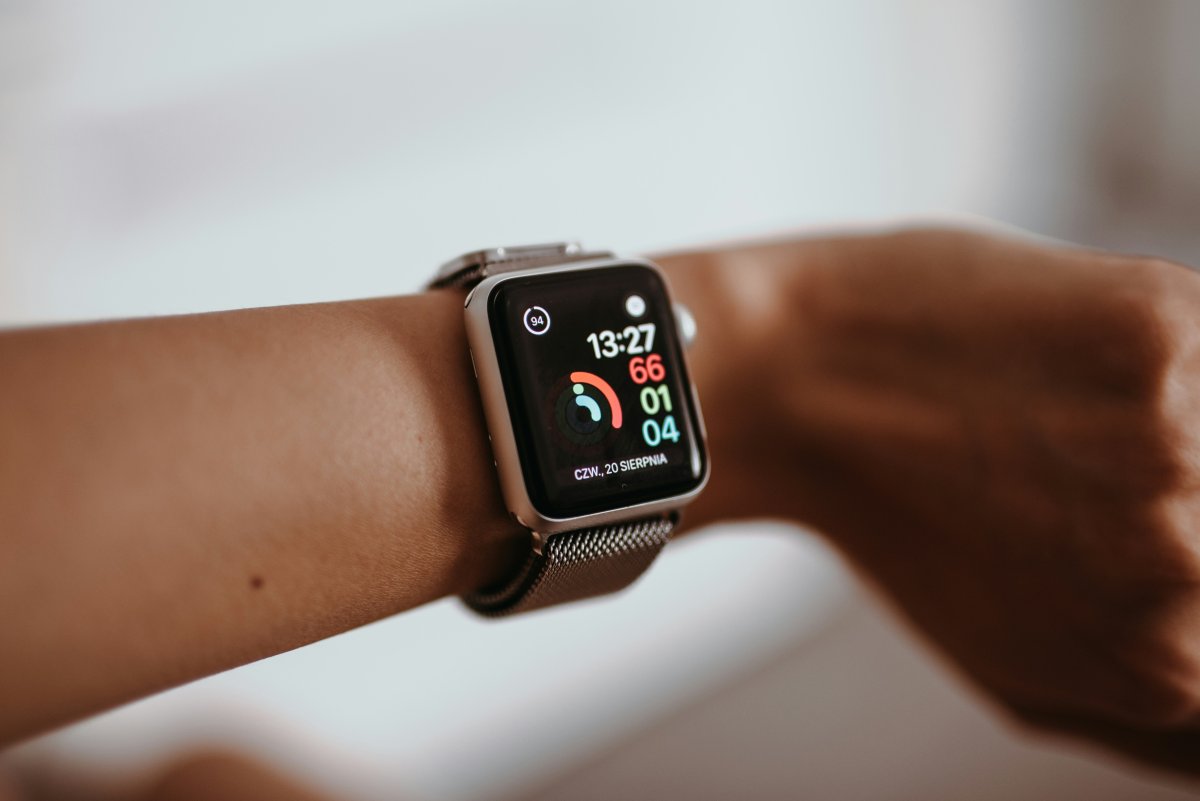
If you want to know how to customize Apple Watch Control Center, start by understanding what it does. Control Center is the place for your most important Apple Watch quick settings. It helps you reach battery, Silent Mode, Theater Mode, Water Lock, Wi Fi, Cellular and Ping iPhone without opening separate apps.
On newer watchOS versions, Control Center is usually opened with the side button. This makes it faster to reach from almost anywhere on the watch. If you are used to older versions where you swiped up, the side button change can feel confusing at first.
How Apple Watch Control Center Works
Apple Watch Control Center is designed for quick actions.
You can check battery level, turn on Silent Mode, use Theater Mode, enable Water Lock, control Wi Fi or Cellular and find your iPhone. These are settings people often need during the day, so keeping them easy to reach matters.
To open Control Center, press the side button. Then scroll through the controls and tap the one you need. Depending on your watchOS version, you may also be able to edit or rearrange controls so your favorite buttons are easier to access.
Most Useful Control Center Buttons
The battery button is one of the most useful controls. It helps you quickly check charge level and access Low Power Mode when needed.
Silent Mode is useful when you want alerts without sound. Your watch can still tap your wrist with haptics, which is helpful in meetings, classes or quiet places.
Theater Mode keeps the screen from waking when you raise your wrist. Use it at night, at the movies, on flights or anywhere the screen lighting up would be annoying.
Water Lock prevents accidental touches when the screen is wet. It is useful for swimming, rain, handwashing or water based activity.
Ping iPhone is a small but powerful button. Tap it when your iPhone is nearby but you cannot find it.
Wi Fi and Cellular Controls
Wi Fi and Cellular controls are useful when you want to manage connection quickly.
Wi Fi helps your Apple Watch stay connected when your iPhone is not nearby. Cellular is useful on supported models with an active plan, especially if you want calls, messages or connected features without your iPhone.
These buttons are worth keeping easy to reach if you travel, work out outside or often leave your phone in another room.
Quick Access Habits
The best Control Center setup is simple.
Put the controls you use most where you can reach them quickly. For many users, that means battery, Silent Mode, Theater Mode, Water Lock and Ping iPhone.
Do not think of Control Center as a hidden menu. Think of it as your Apple Watch shortcut panel. The more comfortable you are with it, the faster your watch feels in daily use.
Conclusion
Learning how to customize Apple Watch Control Center makes your watch faster and easier to use.
Focus on the buttons you actually need: battery, Silent Mode, Theater Mode, Water Lock, Wi Fi, Cellular and Ping iPhone. Once these quick settings feel familiar, Apple Watch becomes much more practical in everyday moments.