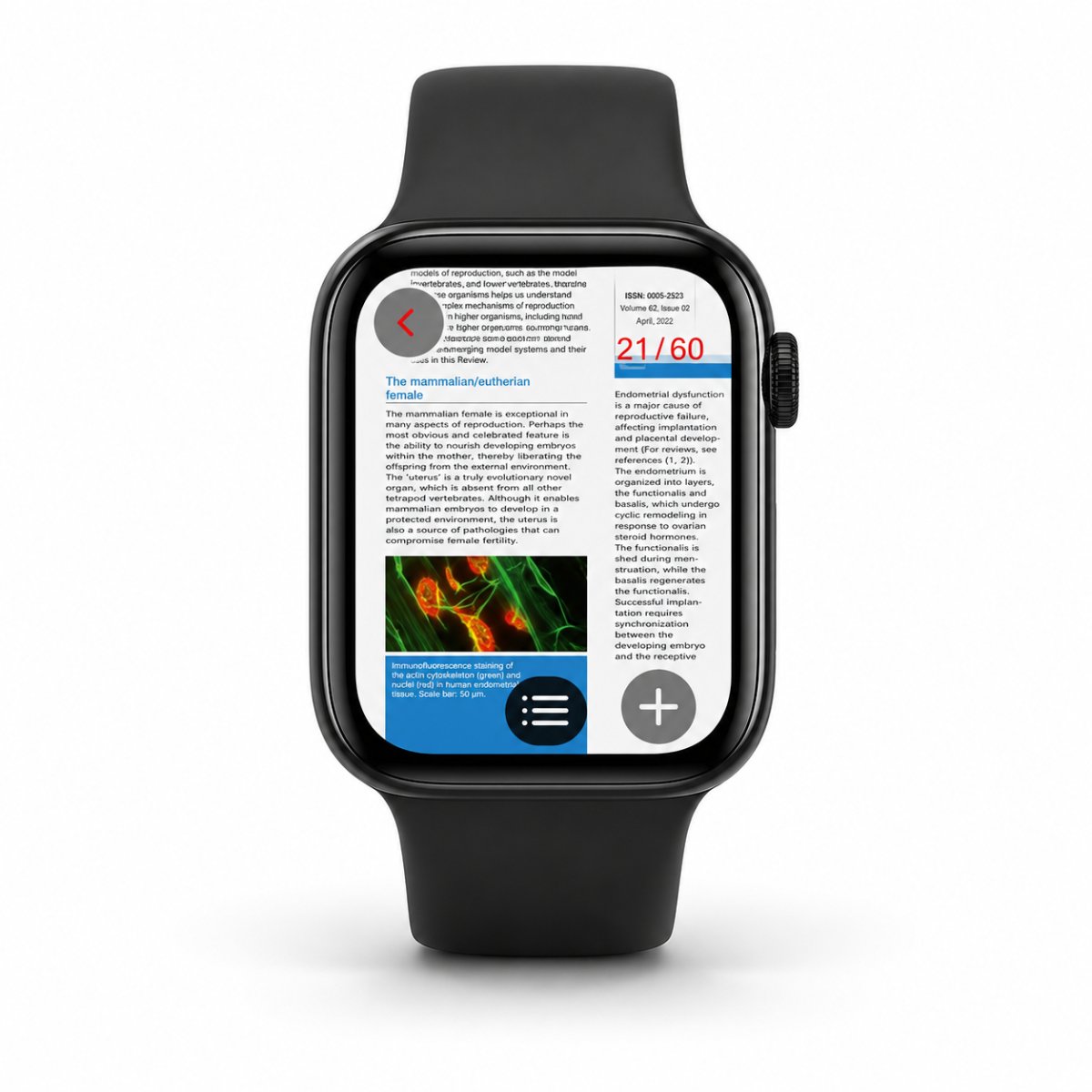
If you want to know how to open PDF files on Apple Watch, there are a few different ways to do it. The best option depends on what kind of document you have and how often you need to view it.
For one simple detail, a screenshot may be enough. For files stored on your iPhone, you can prepare the document there first. For regular PDF access, a dedicated Apple Watch document app is usually the easiest solution.
Apple Watch is useful when you need quick access to information from your wrist. You may want to check a ticket, study note, travel document, work file, schedule, manual or reference page without taking out your iPhone.
The Easiest Way to Open PDF on Apple Watch
For most users, the most practical option is a dedicated PDF viewer Apple Watch app.
A good example is WristDocs : PDF Watch Viewer. It is designed for a simple flow: choose a PDF on your iPhone, send it to your Apple Watch and open it from your wrist when you need it.
A useful option is:
https://apps.apple.com/us/app/pdf-watch-viewer-wristdocs/id6745387064
This makes the process easier because your iPhone handles file selection, while your Apple Watch becomes the quick access screen for the documents that matter.
Using WristDocs for PDF Files
WristDocs is useful when you want to keep important PDFs easy to reach.
You can select a PDF on your iPhone, transfer it to your Apple Watch and view it later from the watch. This works well for tickets, travel documents, class notes, short manuals, checklists, work files and quick reference documents.
WristDocs also supports searching inside a PDF from Apple Watch. If you are looking for a specific word, name, section or detail, you can search the document instead of scrolling through every page manually.
That is helpful when the PDF is not just something you want to open, but something you may need to find information in quickly.
Using Screenshots Instead of PDFs
Screenshots can be useful when you only need one page or one detail.
For example, you can save a QR code, address, gate number, short schedule, booking detail or simple note as an image. This is quick and easy, especially if you do not need the full document.
The downside is organization. If you have several pages or multiple documents, screenshots can become harder to manage. They are also not ideal when you need to search inside the text or update the file later.
For one small detail, screenshots are fine. For real Apple Watch PDF files, a document viewer is usually more practical.
Using iPhone Files and Documents
Many people keep PDFs in the Files app on iPhone. That is still a good place to store and manage documents.
The challenge is that Apple Watch is not a full file manager like iPhone or iPad. You may not always want to search through folders or open files from different locations on the watch.
A better workflow is to manage documents on iPhone first, then send the important ones to Apple Watch when you know you may need them. This keeps the watch experience simple.
Email and Cloud Storage Options
Email and cloud storage can also help you keep documents available, but they are usually better for storing files than quickly viewing them from Apple Watch.
If a PDF is buried inside an email thread or a cloud folder, finding it at the right moment can take time. This matters when you are traveling, studying, working or standing in line.
That is why many users prefer a simpler setup: keep documents organized on iPhone, then use an Apple Watch document app for the files they need from the wrist.
When PDF Access on Apple Watch Is Useful
PDF access on Apple Watch is most useful for quick reference.
Students can use it for notes, formulas, summaries and reminders. Travelers can use it for tickets, hotel details, booking information and travel PDFs. Professionals can use it for checklists, work instructions, meeting notes and reference sheets.
It can also help with gym plans, recipes, event details, manuals and other small documents you may need during the day.
The point is not to replace your iPhone for every document task. The point is to make important information easier to reach when opening your phone is not convenient.
Conclusion
Knowing how to open PDF files on Apple Watch is mostly about choosing the right method.
Screenshots can help for one detail. iPhone Files can help you manage documents. Email and cloud storage are useful for keeping files saved. But if you want a cleaner way to open and check PDFs from your wrist, WristDocs : PDF Watch Viewer is one of the most practical options.
The flow is simple: choose the PDF on your iPhone, send it to your Apple Watch and open it from your wrist when you need it.