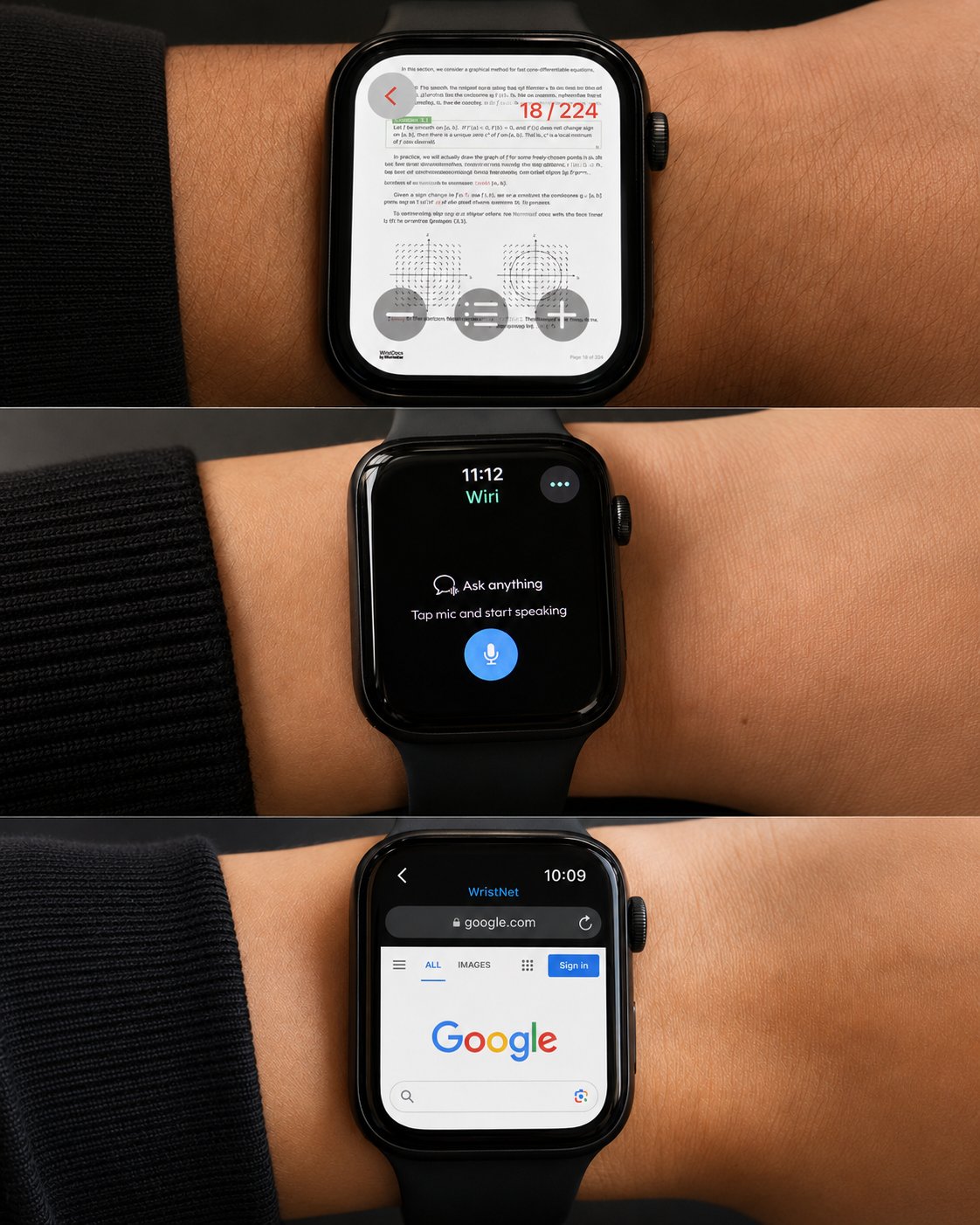
If you want to know how to organize Apple Watch apps, the goal is not to keep every installed app visible. The goal is to make the apps you actually use easier to reach.
Many users install several Apple Watch apps, then forget where everything is. The home screen becomes crowded, notifications feel random and the watch stops feeling simple. A better setup groups apps by real daily needs: communication, health, documents, browsing, AI, travel and productivity.
When your apps are organized around your routine, Apple Watch becomes faster and more useful.
Start With Your Apple Watch App Layout
Before organizing apps, choose the layout that feels easier.
Grid View looks visual, but it can be harder to manage when you have many apps. List View is simpler because app names are easier to scan. If you often forget icons, List View may be the better Apple Watch app layout.
You do not need to keep every app on the watch. Remove apps you never use and keep the ones that solve real daily tasks.
A clean Apple Watch home screen app setup should help you find what you need quickly.
Communication Apps
Communication apps should be easy to reach because they affect your day directly.
This category can include Messages, Phone, Mail, WhatsApp, Slack, Teams or any app you use for important alerts. The key is to avoid sending every notification to your wrist.
Keep direct messages, calls and work alerts visible if they matter. Turn off low value alerts that only create noise.
For daily use, Apple Watch works best when communication apps help you notice what is important without pulling you into every conversation.
Health and Fitness Apps
Health and fitness apps are usually some of the most useful Apple Watch apps daily use.
Keep Workout, Activity, Heart Rate, Sleep and any fitness apps you use often easy to access. If you track walks, runs, gym sessions or sleep, these apps should not be buried.
A fitness focused setup can include Workout, Activity, Weather, Music and Timer. That gives you quick access before exercise without searching through the full app list.
If you use sleep tracking, make sure Sleep and battery related controls are easy to find before bed.
Document Apps
Documents are not something every user needs on Apple Watch, but they can be very useful for work, school and travel.
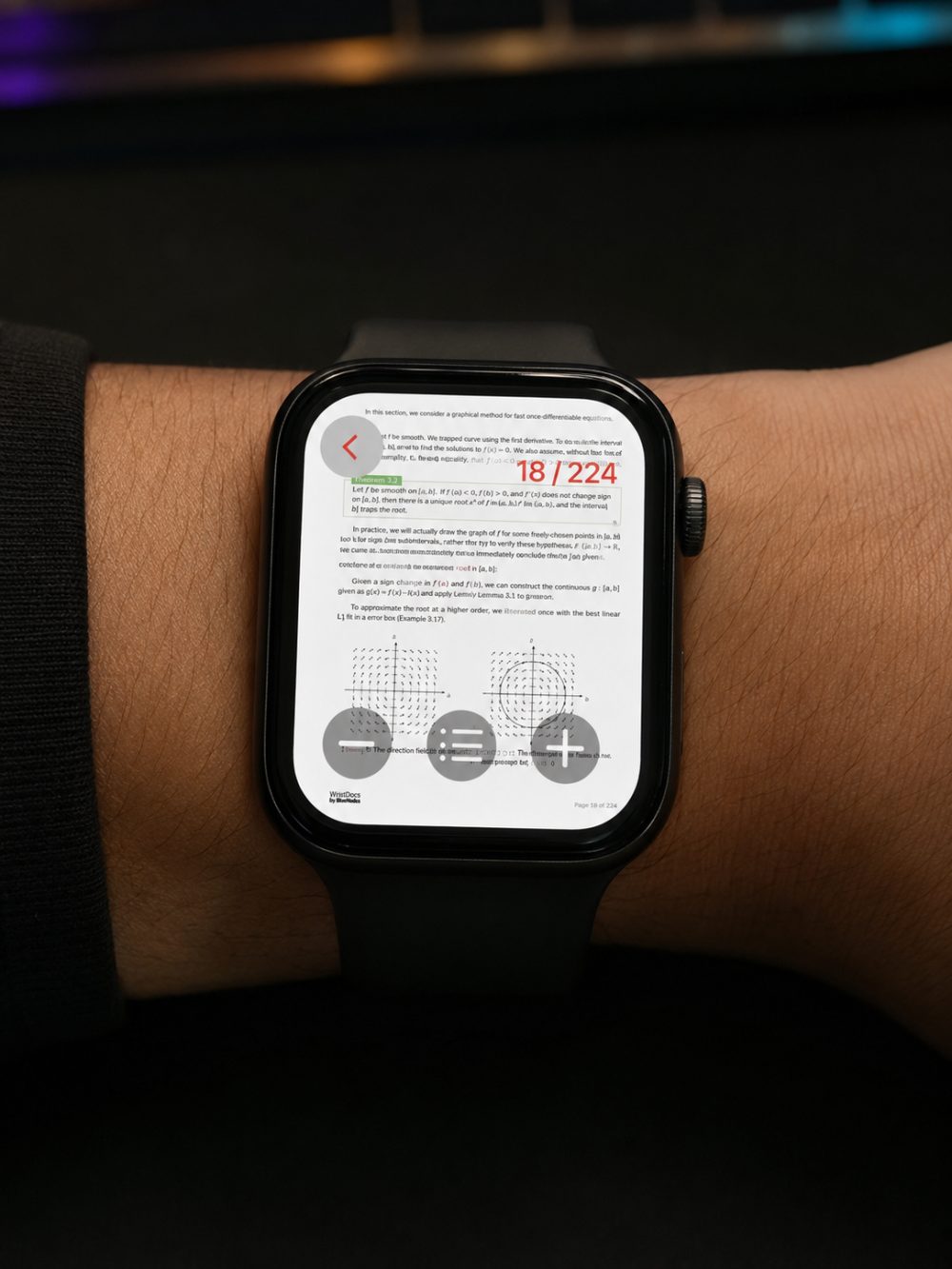
WristDocs : PDF Watch Viewer fits naturally in this category. It lets you keep selected documents, PDFs, notes, travel files, manuals, checklists and reference files available from your wrist.
A practical option is:
https://apps.apple.com/us/app/pdf-watch-viewer-wristdocs/id6745387064
This is helpful if you need to check a file quickly without opening your iPhone. Students can use it for notes. Professionals can use it for work documents. Travelers can use it for tickets, booking details and schedules.
Best category: documents, PDFs, notes and reference files.
Browsing Apps
Browsing apps are useful when you want quick web access from Apple Watch.
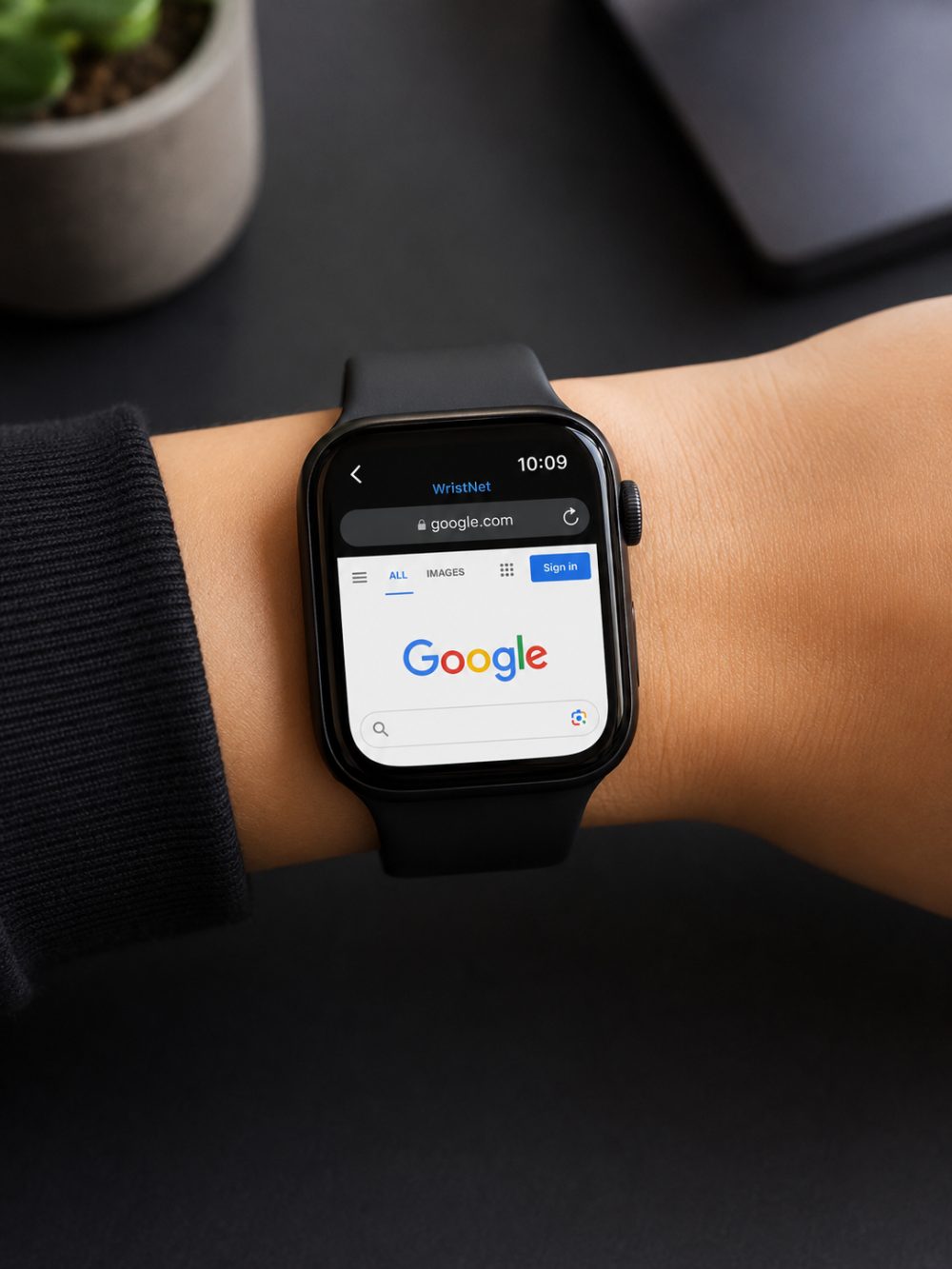
Watch Web Browser : WristNet fits here because it gives your watch browser based access to websites, searches, links and web pages.
A practical option is:
https://apps.apple.com/us/app/watch-web-browser-wristnet/id6747051754
WristNet is useful for quick lookups, saved pages, links, social web pages and browser based tools. If you often search something during the day, keeping a browser app easy to reach makes Apple Watch feel more flexible.
Best category: web lookup, links, bookmarks and browser access.
AI Apps
AI apps can be useful when you want fast help from your wrist.
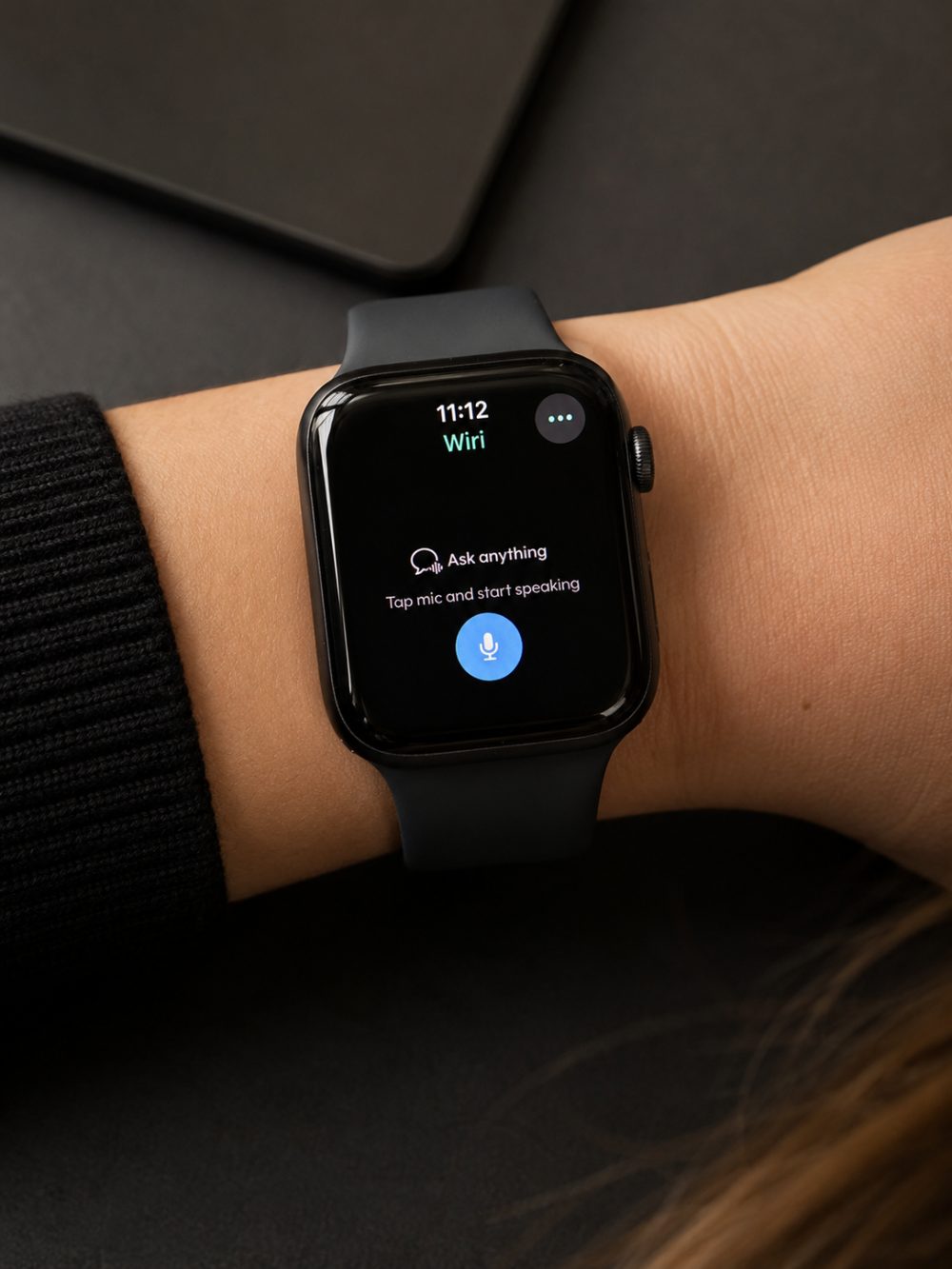
Chat AI on Watch : WristAnswer fits this category. It can help with quick answers, writing ideas, message drafts, simple explanations, study support and productivity prompts.
A practical option is:
https://apps.apple.com/us/app/wristanswer-chat-ai-on-watch/id6758810005
For an Apple Watch productivity setup, WristAnswer is useful because it gives you a way to ask for help without opening your phone. Keep it near other work or study apps if you use AI often during the day.
Best category: AI help, writing support, ideas and quick answers.
Travel Apps
Travel apps should be grouped around movement and quick access.
Useful travel apps include Wallet, Maps, Weather, Calendar, Translate, WristDocs and WristNet. Wallet helps with supported passes and cards. Maps helps with directions. Weather helps with planning. WristDocs can keep travel documents ready. WristNet can help open web pages or links while traveling.
If you travel often, create a travel focused setup with these apps close together. You can also use a travel watch face with Wallet, Weather, Calendar and Maps complications.
Productivity Apps
Productivity apps should help you manage tasks without making the watch feel busy.
Useful apps include Reminders, Calendar, Timer, Shortcuts, Notes where supported and Focus related tools. WristAnswer can also fit into productivity if you use it for writing help or quick ideas.
The best Apple Watch productivity setup is simple: calendar for what is next, reminders for what you need to do, timer for focus and shortcuts for repeated actions.
Do not overload the watch with too many productivity apps. Keep only the ones you actually use.
Use Watch Faces and Complications
App organization is not only about the app screen.
Complications can bring your most important tools to the watch face. For example, you can add Calendar, Weather, Activity, Timer, Reminders or battery information.
If you use WristDocs, WristNet or WristAnswer often, keep them easy to reach from the app layout. Use complications for built in information you check constantly.
A good system uses both: watch faces for glanceable information and app layout for deeper actions.
Remove Apps You Do Not Use
One of the best ways to organize Apple Watch apps is to remove what you do not use.
If an app does not help with communication, health, documents, browsing, AI, travel or productivity, ask whether it needs to be on your watch. You can keep the iPhone app without keeping the Apple Watch version.
A smaller app list makes everything faster. It also reduces clutter and makes the watch feel more intentional.
Conclusion
Learning how to organize Apple Watch apps is about making your watch easier to use every day.
Group apps by communication, health, documents, browsing, AI, travel and productivity. Keep WristDocs with document tools, WristNet with browsing tools and WristAnswer with AI and productivity tools. Then remove apps you do not use and keep your most important actions easy to reach.
A good Apple Watch app organization makes the watch feel faster, cleaner and more useful in daily life.