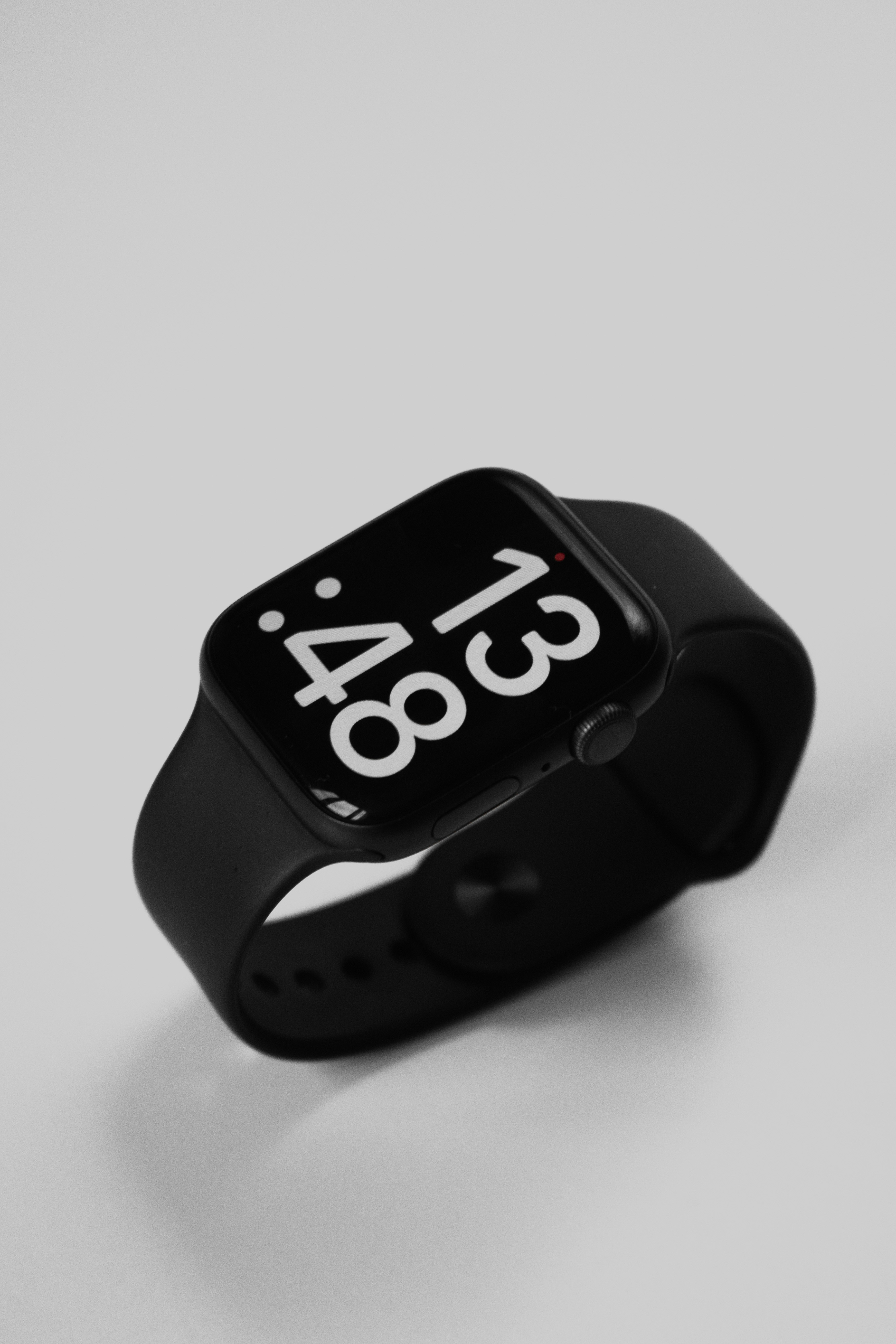
If your Apple Watch keeps buzzing at the wrong time, Focus Mode can make the experience much calmer. It helps you control when notifications appear, which people can reach you and which apps are allowed to interrupt you during sleep, work, workouts or quiet time.
This guide explains how to use Focus Mode on Apple Watch in a simple and practical way. You will learn how Focus modes work, how they sync with your iPhone and why notifications sometimes still appear even when you thought they were blocked.
Focus Mode is not just one setting. It includes options like Do Not Disturb, Sleep Focus, Work Focus, Fitness Focus and custom modes you can create for your own routine. Once you understand how these settings connect, your Apple Watch becomes less distracting and much easier to live with every day.
How to Use Focus Mode on Apple Watch
Focus Mode on Apple Watch helps you decide when your watch should stay quiet and when important notifications should still come through.
The most important thing to understand is that Focus usually works across your Apple devices. If you turn on a Focus mode on your iPhone, it can also apply to your Apple Watch. If you turn it on from your Apple Watch, it may also affect your iPhone depending on your settings.
You can use Focus Mode for different situations:
Sleep Focus for nighttime
Work Focus for meetings and deep work
Do Not Disturb for temporary quiet time
Fitness Focus during workouts
Custom Focus modes for personal routines
The goal is not to block everything all the time. The goal is to let the right notifications reach you at the right moment.
What Apple Watch Focus Mode Actually Does
Apple Watch Focus Mode controls interruptions.
When a Focus mode is active, your watch can silence or filter notifications based on the rules you set. You can allow certain people, allow certain apps or block most alerts until the Focus mode ends.
For example, Sleep Focus can stop most notifications overnight. Work Focus can allow calendar and work messages while blocking social apps. Fitness Focus can reduce distractions during workouts.
Focus Mode does not delete notifications. It usually holds or silences them so you can check them later. This is helpful because you are not losing information. You are simply choosing when it should interrupt you.
Apple Watch Focus Mode is especially useful because notifications feel more personal on your wrist than on your phone. A phone notification is easy to ignore. A wrist tap feels more immediate. That is why Focus settings matter so much.
How Focus Mode Syncs Between Apple Watch and iPhone
For most users, Apple Watch and iPhone Focus settings are connected.
This means that when you enable a Focus mode on your iPhone, your Apple Watch can follow it. When you enable a Focus mode on your watch, your iPhone may follow it too. This depends on your Focus sharing settings.
On iPhone, you can check this by going to Settings, then Focus. Look for the setting that shares Focus status or shares Focus across devices. The exact wording may vary by iOS version, but the idea is simple: your devices can use the same Focus mode at the same time.
This is usually helpful. If you turn on Sleep Focus at night, you probably want both your iPhone and Apple Watch to stay quiet. If you turn on Work Focus during a meeting, you probably do not want your watch buzzing either.
But this syncing can also confuse people. You may turn on a Focus mode from one device and forget that it affects another. If your Apple Watch is quiet when you did not expect it, check whether Focus is active on your iPhone.
How to Turn On Focus Mode on Apple Watch
The quickest way to turn on Focus Mode from Apple Watch is through Control Center.
Depending on your watchOS version, you can open Control Center using the side button or from the watch interface. Look for the Focus icon, usually shown as a moon or related Focus symbol. Tap it and choose the mode you want.
Common options may include:
Do Not Disturb
Sleep
Work
Personal
Fitness
Any custom Focus mode you created
You may also see options for how long to keep it on. For example, you may be able to turn it on until you leave a location, until an event ends or for a set amount of time.
This is useful when you need quiet time quickly. You do not need to open your iPhone or dig through settings.
Apple Watch Do Not Disturb: When to Use It
Apple Watch Do Not Disturb is the simplest Focus option.
Use it when you want your watch to stop interrupting you for a while. It is helpful during meetings, movies, studying, meals, appointments or any moment when notifications would be distracting.
Do Not Disturb is different from building a detailed Work or Sleep Focus. It is more like a quick quiet button. You can turn it on when needed and turn it off when you are ready.
For example, if you are going into a one hour meeting, Do Not Disturb is often enough. If you want a daily work routine with specific allowed apps and people, Work Focus is better.
Do Not Disturb is one of the most useful Apple Watch focus settings because it is fast, simple and easy to understand.
Apple Watch Sleep Focus: Stop Notifications at Night
Sleep Focus is designed to help you avoid nighttime interruptions.
When Sleep Focus is active, your Apple Watch can reduce notifications, dim the experience and support a calmer nighttime routine. This is especially useful if you wear your watch to bed for sleep tracking or haptic alarms.
A good Sleep Focus setup can help with:
Blocking late night notifications
Reducing screen distractions
Keeping only important contacts available
Supporting a consistent sleep schedule
Making overnight Apple Watch use less annoying
If notifications still appear at night, check your allowed people and apps. You may have given certain contacts or apps permission to break through Sleep Focus. Also check whether Sleep Focus is actually turning on at the correct time.
For many users, Sleep Focus is one of the most important Apple Watch settings because wrist notifications at night can be much more disruptive than phone alerts.
Apple Watch Work Focus: Make Your Watch Less Distracting
Work Focus is useful when you want your Apple Watch to support productivity instead of interrupting it.
A good Work Focus setup should allow the apps and people that matter for work while blocking the alerts that pull you away. For example, you may allow calendar notifications, reminders, work messages or calls from important contacts. You may block entertainment, shopping and social alerts.
This helps your watch become a productivity tool instead of a distraction.
Work Focus can also be scheduled. You might set it to turn on during office hours or when you arrive at a work location. If you use a regular work routine, this can save you from turning it on manually every day.
The best Apple Watch Work Focus setup is not too strict and not too loose. If you block everything, you may miss important alerts. If you allow everything, the Focus mode becomes pointless.
Fitness Focus: Stay Present During Workouts
Fitness Focus can help reduce distractions while you are exercising.
When you start a workout, your Apple Watch may be able to use a Fitness Focus depending on your settings. This keeps your attention on the workout instead of every message, app alert or random notification.
This is useful during running, cycling, gym sessions, walking or any workout where you want fewer interruptions.
A good Fitness Focus setup might allow urgent calls or important contacts but block most app notifications. You can still check your watch for workout stats, heart rate, time and activity progress without being pulled into unrelated alerts.
For everyday fitness users, this is a simple way to make Apple Watch feel more focused during exercise.
Custom Focus Modes on Apple Watch
Custom Focus modes are helpful when the built in options do not match your routine.
You might create a custom Focus for studying, family time, reading, driving, travel, deep work or evening downtime. Each Focus can have its own rules for people, apps, schedules and device behavior.
For example, a Study Focus might allow reminders and calendar alerts but block social notifications. A Travel Focus might allow maps, airline apps, messages from family and weather alerts. An Evening Focus might allow personal messages while blocking work apps.
Custom Focus modes are useful because not every day fits into Sleep, Work or Fitness. Your Apple Watch becomes more personal when Focus settings match your real life.
The key is to keep custom modes simple. If you create too many, it becomes harder to remember what each one does.
Common Mistakes That Make Notifications Appear at the Wrong Time
If Apple Watch notifications still appear when you expected silence, the problem is usually one of a few settings.
You allowed certain people or apps
Focus modes can allow specific people and apps to notify you. This is useful, but it can also surprise you. If an app keeps appearing during Sleep Focus or Work Focus, check whether it is on the allowed list.
Focus is not syncing across devices
If your iPhone is in Focus Mode but your Apple Watch is not, check whether Focus sharing across devices is enabled. If syncing is off, each device may behave differently.
Time sensitive notifications are allowed
Some notifications may be marked as time sensitive. Depending on your settings, these alerts may break through Focus. If you do not want that, review your Focus options and notification settings.
The wrong schedule is active
A Focus mode may be turning on or off at the wrong time because of a schedule, location or automation. Check the schedule rules for Sleep Focus, Work Focus and any custom mode.
You changed iPhone settings but not Focus rules
Turning off notifications for an app and setting Focus rules are related but not the same. If an app behaves strangely, check both the regular notification settings and the Focus settings.
You forgot which Focus mode is active
Sometimes the problem is simple: a Focus mode is active and you did not notice. Check Control Center on your Apple Watch or iPhone to see which mode is currently running.
Best Apple Watch Focus Settings for Daily Use
A simple Focus setup works better than a complicated one.
For most users, this is a good starting point:
Use Sleep Focus every night
Use Do Not Disturb for temporary quiet time
Use Work Focus during work hours
Use Fitness Focus during workouts
Allow only important people and apps
Review time sensitive notifications
Keep Focus syncing enabled if you want iPhone and Apple Watch to match
This setup keeps your watch useful without letting it interrupt everything.
You can adjust later as you learn what you need. The best Apple Watch notification focus setup is the one that fits your day without making you miss important alerts.
Things to Know Before Changing Focus Settings
Focus Mode is powerful, but it can feel confusing at first because it connects several parts of your Apple ecosystem.
If notifications are not behaving the way you expect, do not change everything at once. Check one Focus mode at a time. Start with Sleep Focus, then Work Focus, then Do Not Disturb and any custom modes.
Also remember that Focus Mode and notification settings are different. Notification settings decide whether an app can notify you. Focus settings decide whether that notification should be allowed during a specific situation.
Another important point: Focus Mode is not just for blocking alerts. It is also for creating a better routine. Used well, it helps your Apple Watch feel calmer, smarter and more intentional.
Who This Guide Is Best For
This guide is best for Apple Watch users who feel interrupted too often or confused by notifications.
It is especially useful for people who wear Apple Watch at night, use it during work, track workouts or want fewer distractions during the day. It is also helpful for new users who do not understand why notifications sometimes appear on the watch even when Focus is active on iPhone.
Productivity users can use Work Focus to stay on task. Fitness users can use Fitness Focus during workouts. People who value better sleep can use Sleep Focus to reduce nighttime alerts.
If your Apple Watch feels too noisy, Focus Mode is one of the first settings worth learning.
Conclusion
Learning how to use Focus Mode on Apple Watch can make your watch feel much calmer and more useful. Instead of letting every notification tap your wrist, you can decide which alerts matter during sleep, work, workouts and quiet time.
Start with Sleep Focus, Work Focus and Do Not Disturb. Then add custom Focus modes only if they solve a real problem in your daily routine. Check allowed people, allowed apps, time sensitive notifications and Focus syncing if alerts appear at the wrong time.
A well set up Focus Mode helps Apple Watch do what it should do best: keep you informed without constantly interrupting your day.