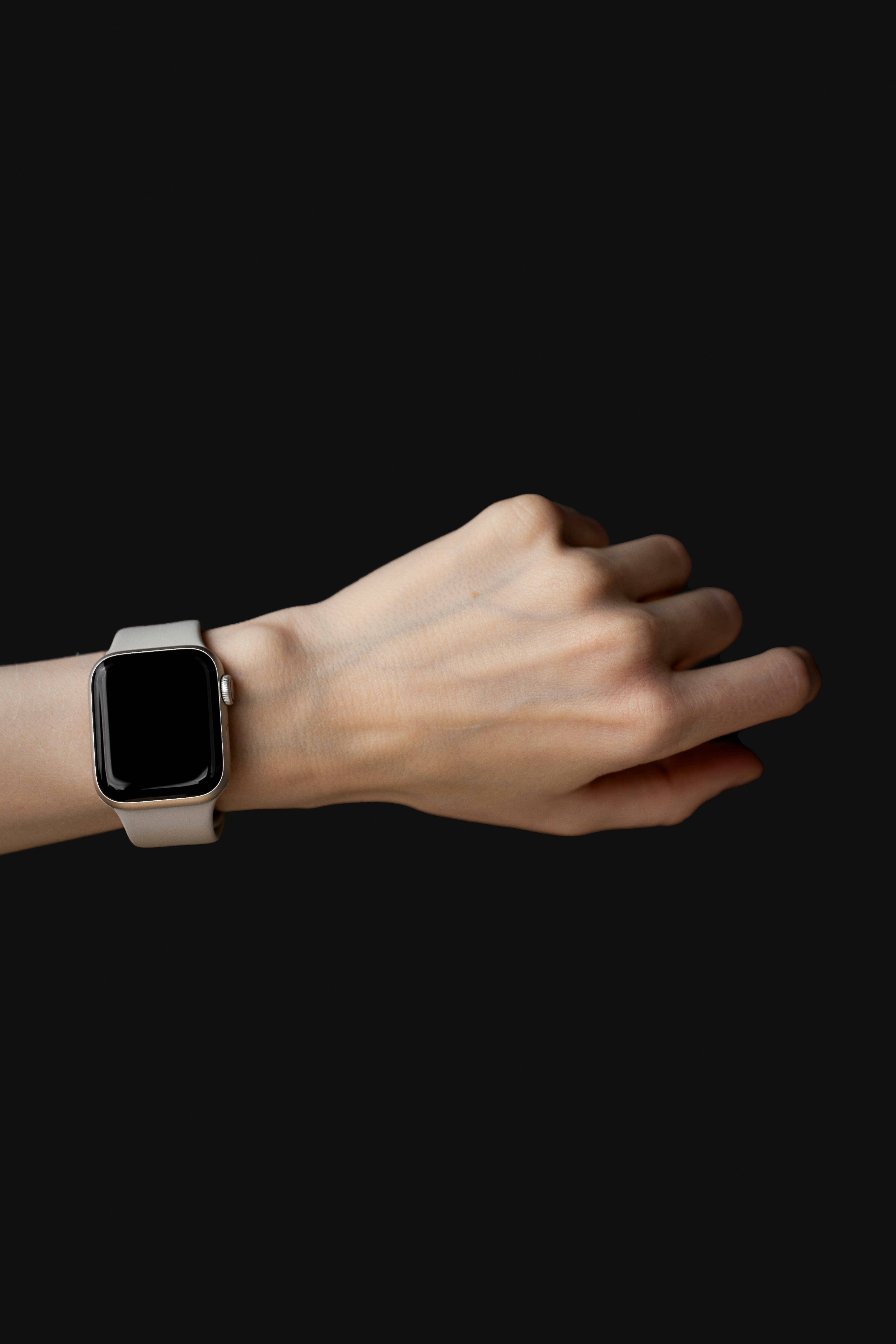
Learning how to use gestures on Apple Watch makes the device feel much easier to control. Apple Watch has a small screen, so simple movements like tapping, swiping, scrolling with the Digital Crown and pressing the side button matter a lot in daily use.
Most people quickly learn how to tap apps and read notifications, but they often miss useful gesture controls that can save time. Double tap, pinch style hand gestures, cover to mute, accessibility gestures and wrist based actions can make the watch feel more natural once you know when to use them.
This guide explains Apple Watch gestures in simple language. You will learn the common controls, what newer gesture features do, where accessibility gestures fit and how to use these actions in everyday situations like checking notifications, opening Control Center, scrolling Smart Stack, answering calls, controlling music or starting workouts.
How to Use Gestures on Apple Watch
Apple Watch gestures are built around short, simple actions. You tap to choose something, swipe to move around, turn the Digital Crown to scroll and press the side button for quick controls.
The easiest way to understand Apple Watch gesture controls is to separate them into three groups: screen gestures, button controls and hand gestures.
Screen gestures include tap, touch and hold, swipe and drag. Button controls include the Digital Crown and side button. Hand gestures include double tap or pinch style gestures where supported, plus accessibility gestures such as clench and double clench when AssistiveTouch is enabled.
You do not need to memorize every gesture at once. Start with the basic ones, then add the newer controls if your Apple Watch model supports them.
Basic Apple Watch Gestures
Tap
Tap is the most common Apple Watch gesture. You tap an app icon to open it, tap a notification to read it and tap a button to confirm an action.
If something looks selectable, tapping is usually the first thing to try.
Touch and Hold
Touch and hold means pressing the screen and keeping your finger there for a moment.
You can use it to customize a watch face, change certain options or reveal extra controls depending on the screen. On the watch face, touch and hold is especially useful because it lets you edit or switch faces quickly.
Swipe
Swipe means moving your finger across the screen. You may swipe up, down, left or right depending on the app or view.
Swiping helps you move through screens, dismiss certain views, browse app sections or check information that is not visible at first glance. Since the Apple Watch screen is small, swiping is one of the gestures you will use often.
Drag
Drag means touching something and moving it without lifting your finger.
You may use drag to move around a map, adjust a slider, rearrange app icons or control something more precisely. It is not as common as tapping or swiping, but it is useful when you need fine control.
Use the Digital Crown
The Digital Crown is one of the most important Apple Watch controls.
You can turn it to scroll through lists, move through Smart Stack, adjust values or zoom in some views. This is often more comfortable than swiping because your finger does not cover the small screen.
Pressing the Digital Crown usually takes you back to the watch face or Home Screen. Pressing and holding can activate Siri, depending on your settings. Double clicking may show recent apps or related app controls depending on your watchOS version.
A good beginner habit is simple: when a screen feels crowded, try the Digital Crown before swiping.
Use the Side Button
The side button is useful for quick system controls.
On newer watchOS versions, pressing the side button opens Control Center. This gives you access to useful options like Silent Mode, Focus, Theater Mode, Water Lock, Flashlight, battery information and Ping iPhone.
Double clicking the side button can open Wallet for payments or passes, depending on your setup. Pressing and holding can bring up safety and power options.
The side button is important because it helps you reach everyday settings without searching through menus.
Apple Watch Double Tap
Apple Watch double tap is a newer gesture on supported models. It lets you tap your index finger and thumb together twice to perform certain actions without touching the screen.
This can be useful when your other hand is busy. For example, you may use double tap to answer a call, control music, move through Smart Stack, stop a timer or interact with supported alerts.
Double tap is not available on every Apple Watch model and it does not work in every situation. It may also be affected by settings such as Low Power Mode, Sleep Focus, display state or accessibility controls.
The best way to think about double tap is as a quick shortcut, not a full replacement for touching the screen. It is most useful for simple actions you want to perform with one hand.
Apple Watch Pinch Gesture and Hand Gestures
Many people use the phrase Apple Watch pinch gesture to describe tapping the thumb and index finger together. Depending on your model and settings, this may refer to double tap or accessibility hand gestures.
Accessibility hand gestures are part of AssistiveTouch. They are designed to help users control Apple Watch without relying only on screen taps or physical buttons. This can be useful for people with motor limitations, seniors or anyone who wants alternative control options.
AssistiveTouch gestures may include actions such as pinch, double pinch, clench and double clench. These gestures can help move through items, select options, go back or open an action menu.
This is one of the most important Apple Watch accessibility gestures because it can make the watch easier to use for people who find small screen controls difficult.
Cover to Mute
Cover to mute is one of the simplest Apple Watch gestures.
When an alert sounds, cover the display with your palm for a moment to silence it. This is useful in meetings, classrooms, restaurants, public transport or any situation where a notification appears at the wrong time.
It feels small, but it is one of those Apple Watch gestures that becomes useful once you remember it exists.
Practical Everyday Examples
If a notification arrives, tap it to read, use the Digital Crown to scroll, then press the Crown to return to the watch face.
If you want quick settings, press the side button and open Control Center. From there, you can turn on Silent Mode, Focus, Theater Mode or Water Lock.
If you are checking Smart Stack, turn the Digital Crown from the watch face. This is easier than opening multiple apps.
If your hands are busy and your model supports it, use double tap for a quick action like answering a call or controlling media.
If you are cooking, set a timer with Siri or taps, then use the Digital Crown to adjust the time. If an alert sounds at the wrong moment, cover the screen to mute it.
Things to Know Before Using Gesture Controls
Not every gesture works on every Apple Watch model. Double tap, wrist based controls and some accessibility features depend on hardware, watchOS version and settings.
Some gestures may also stop working in certain modes. Low Power Mode, Sleep Focus, a locked watch, inactive display or AssistiveTouch settings can change how gestures behave.
If a gesture does not respond, do not assume something is broken. Check whether your Apple Watch supports it, whether the feature is enabled and whether another setting is blocking it.
The best Apple Watch gestures are the ones you actually use every day. Start with tap, swipe, Digital Crown and side button. Then add double tap, pinch or accessibility gestures if they make your routine easier.
Conclusion
Learning how to use gestures on Apple Watch helps you control the watch faster and with less effort. Start with the basics: tap, touch and hold, swipe, drag, the Digital Crown and the side button.
After that, explore double tap, pinch style controls and accessibility gestures if your Apple Watch supports them. You do not need every gesture on day one. Focus on the ones that solve real daily problems, like checking notifications, opening Control Center, scrolling Smart Stack, muting alerts and controlling actions when your hands are busy.