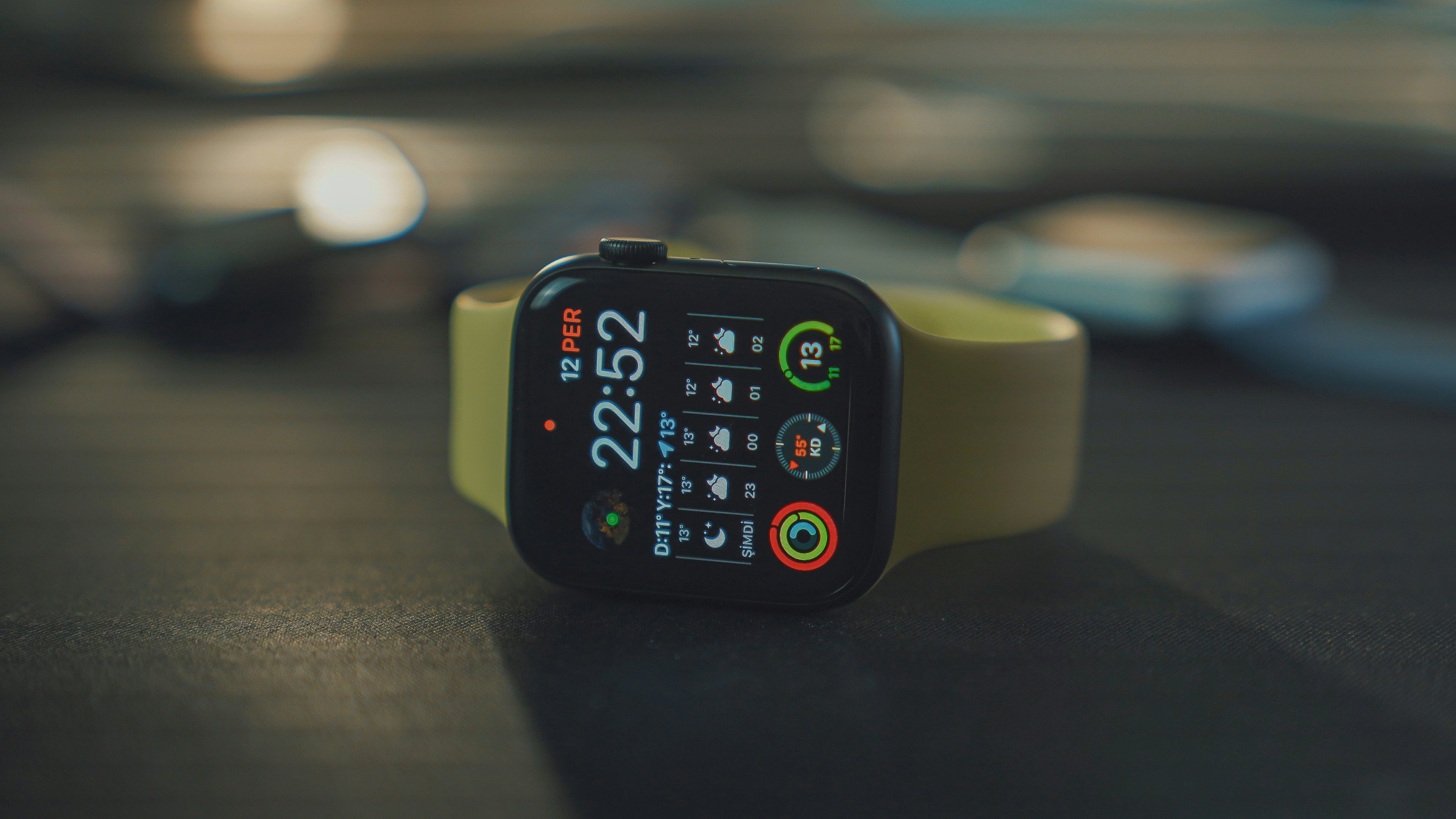
If you are asking, “why is my Apple Watch battery draining so fast?”, you are probably noticing a sudden change. Maybe your watch used to last the whole day but now drops quickly by lunch. Maybe it loses battery overnight. Maybe it drains faster after an update, a workout or a day when you used cellular more than usual.
Apple Watch battery drain can happen for many reasons. Sometimes it is a simple setting, like display brightness or Always On Display. Sometimes it is caused by a recent software update, an app running in the background, too many notifications, GPS workouts or a charging issue. In some cases, the battery itself may be aging.
This guide walks through the most common causes and practical fixes. Start with the easy steps first, then move to deeper troubleshooting only if the problem continues.
Why Is My Apple Watch Battery Draining So Fast?
Apple Watch battery drain usually comes from one of three things: the watch is doing more work than usual, a setting is using more power than expected or something is not working correctly.
Common causes include:
A recent watchOS update
Always On Display or frequent screen wake
High brightness
Cellular usage
Long workouts with GPS
Too many notifications
Background App Refresh
Apps that are stuck or syncing too often
Poor charging habits or charger issues
Battery health decline
A sudden battery problem does not always mean your Apple Watch is broken. In many cases, a restart, software update or small settings change can fix it.
Common Causes of Apple Watch Battery Drain
Before changing everything, try to understand when the battery drain happens. Does it happen after workouts? Overnight? After a software update? Only when you leave your iPhone behind? The pattern usually points to the cause.
Recent watchOS updates
A recent update can temporarily make your Apple Watch battery drain faster. After an update, the watch may spend extra time syncing, indexing, updating apps and adjusting background processes.
This can make battery life feel worse for a day or two. If the drain started right after an update, give it some time, restart your watch and iPhone and check for any follow up updates.
If the problem continues for several days, move through the other fixes in this guide.
Always On Display and wake settings
If your Apple Watch supports Always On Display, it can affect battery life. The feature is convenient because the screen stays visible, but it also means the display is active more often.
Wake on Wrist Raise can also matter. If the screen turns on constantly while you move, work, drive or exercise, that can add up.
Check these settings:
Open Settings on Apple Watch
Go to Display and Brightness
Review Always On, brightness and wake settings
You do not have to turn everything off. If battery life is a problem, try reducing brightness, shortening wake duration or turning off Always On Display for a day to see if it helps.
High brightness and screen use
The display is one of the biggest battery users on Apple Watch. If brightness is set high and you often wake the screen, battery can drop faster.
This is especially noticeable if you use apps frequently, check notifications often or keep the screen active during workouts.
A simple fix is to lower brightness slightly. You still want the screen to be readable, but it does not always need to be at maximum brightness.
Cellular usage
If you have an Apple Watch with cellular and use it away from your iPhone, battery drain can be much faster.
Cellular uses more power because the watch is handling connection, data and communication on its own. Calls, streaming music, maps, messages and app usage over cellular can all reduce battery life quickly.
If your Apple Watch battery dies fast mainly when you leave your iPhone behind, cellular usage may be the reason.
To reduce drain, keep your iPhone nearby when possible, download audio before going out if supported and avoid long calls directly from the watch unless necessary.
Long workouts and GPS tracking
Workouts can use more battery, especially outdoor workouts that rely on GPS, heart rate tracking and sometimes cellular.
Running, cycling, hiking and long walks can drain battery more than normal daily use. This does not mean something is wrong. It means your watch is actively tracking more data.
If battery drain happens after workouts, try these tips:
Start workouts with enough battery
Use Low Power Mode when needed
Avoid streaming over cellular during long workouts
Keep your iPhone nearby when possible
End the workout when you are done
For long training days, battery planning matters more than usual.
Too many notifications
Every notification can wake the screen, tap your wrist and make the watch process information. One notification is not a problem, but dozens or hundreds throughout the day can affect battery.
Go to the Watch app on your iPhone and review Notifications. Keep alerts that matter quickly, such as calls, messages, calendar events, reminders, health alerts and important security alerts.
Turn off notifications from apps that only create noise. This can improve both battery life and your daily experience.
Background App Refresh
Background App Refresh lets apps update content even when you are not using them. This can be useful for weather, calendar, fitness and reminder apps, but not every app needs it.
If too many apps refresh in the background, your Apple Watch may use more battery than necessary.
To review it:
Open the Watch app on iPhone
Go to General
Tap Background App Refresh
Turn it off for apps you rarely use on Apple Watch
Keep it enabled only for apps where fresh information truly matters.
Apps syncing too often
Some apps may sync data more often than expected. This can happen after updates, account changes, connection problems or app bugs.
If you notice battery drain after installing a new app, remove it temporarily and see if battery life improves. You can always reinstall it later.
Also check whether the app is sending frequent notifications, updating in the background or using location access.
Charger or charging habit issues
Sometimes the problem is not only battery drain. It may be that the watch is not charging properly in the first place.
If your Apple Watch starts the day at 80 percent when you thought it was fully charged, it will seem like the battery is dying fast. A loose charger, dirty charging surface, damaged cable, weak power adapter or poor connection can all cause charging issues.
Make sure the back of the watch and charger are clean. Place the watch correctly on the charger and check whether it reaches 100 percent normally.
If charging is slow or inconsistent, test another cable or power adapter if available.
Battery health decline
All rechargeable batteries age over time. If your Apple Watch is older, battery capacity may have declined.
This means the watch may still work normally but last fewer hours than it used to. If battery drain has slowly worsened over months rather than suddenly appearing, battery health may be part of the issue.
Check Battery settings on Apple Watch to review battery information. If battery health is significantly reduced, service or replacement may be worth considering.
Apple Watch Battery Troubleshooting: What to Try First
Start with simple fixes before doing anything drastic.
Restart your Apple Watch and iPhone
A restart can fix temporary battery problems caused by stuck apps, syncing issues or software glitches.
Restart both your Apple Watch and your iPhone. Since the two devices work closely together, restarting only one may not fully solve the issue.
After restarting, use the watch normally for a few hours and see whether the battery drain improves.
Check for software updates
If your Apple Watch battery problem started after a software issue, an update may help.
Open the Watch app on iPhone and check for watchOS updates. Also make sure your iPhone is updated because Apple Watch depends on iPhone for many features.
Updates can sometimes cause temporary drain, but they can also fix bugs. If an update is available, install it when you have enough time and battery.
Review Battery settings
Apple Watch includes battery settings that can help you understand usage and enable Low Power Mode.
Open Settings on Apple Watch and go to Battery. Look for battery level, recent charging information and Low Power Mode options.
This can help you see whether your watch is charging normally and how quickly it is dropping.
Turn on Low Power Mode when needed
Low Power Mode can extend Apple Watch battery life by reducing some power hungry features. It is useful during travel, long days, outdoor workouts or when you cannot charge soon.
Low Power Mode is not something you need to use all the time, but it is helpful when your battery is already low or you know the day will be long.
Remove apps you do not use
Apps you rarely use can still send notifications, refresh in the background or take up space. Removing unnecessary Apple Watch apps can make the watch feel cleaner and may reduce background activity.
You do not need to remove everything. Focus on apps you never open or apps you installed recently before the battery problem started.
Turn off features temporarily to test
If you are not sure what is causing the drain, test one setting at a time.
For example, try turning off Always On Display for one day. If battery life improves, you have found a likely cause. Then try reducing notifications or Background App Refresh.
Do not change ten settings at once. If you do, you will not know which change helped.
Best Settings to Help Apple Watch Battery
If your Apple Watch is losing battery quickly, these settings are worth reviewing first.
Display settings
Lower brightness if the screen feels brighter than necessary. Review Always On Display if your model supports it. Shorten wake duration if the screen stays active longer than you need.
These changes can make a noticeable difference because the display is used constantly throughout the day.
Notification settings
Reduce alerts from apps that do not need your attention. Fewer notifications mean fewer screen wakes, fewer haptic taps and less distraction.
This is one of the easiest battery and quality of life improvements.
Background App Refresh
Turn off Background App Refresh for apps you do not use often on Apple Watch. Keep it only for apps where updated information matters.
Location permissions
Some apps may use location in ways that affect battery. Review location access on your iPhone and limit apps that do not need it.
This is especially useful if battery drain happens when you are moving around or using travel, weather, maps or fitness apps.
Workout and fitness settings
If long workouts drain battery, consider Low Power Mode for workouts when necessary. Also avoid streaming audio over cellular during long sessions if battery life matters.
Fitness tracking is one of the most valuable Apple Watch features, so do not turn off useful tracking unless you truly need to. Adjust only what causes a real problem.
When to Unpair and Pair Apple Watch Again
Unpairing and pairing your Apple Watch again is a stronger troubleshooting step. It can help when battery drain continues after restarts, updates and settings changes.
You may consider unpairing if:
Battery drain started suddenly and nothing fixes it
Apps seem stuck or constantly syncing
The watch behaves strangely after an update
Battery drops quickly even when you barely use it
Restarting both devices does not help
Unpairing can take time, so it should not be your first step. Try simpler fixes first. If you do unpair, make sure your data is backed up through the normal Apple Watch and iPhone process.
When to Contact Apple Support
If your Apple Watch battery still drains quickly after troubleshooting, it may be time to contact support.
Consider getting help if:
Battery drops rapidly while the watch is idle
The watch gets unusually warm
Charging is slow or inconsistent
Battery health appears poor
The watch shuts down unexpectedly
Battery drain continues after updates, restarts and pairing again
A hardware issue is less common than settings or software problems, but it can happen. If the watch is older or battery health has declined, service may be the realistic solution.
Things to Know Before Worrying Too Much
Not every battery drop is a problem.
Apple Watch battery life changes based on how you use it. A day with GPS workouts, cellular, music, calls, maps and many notifications will drain faster than a normal day at home near your iPhone.
Weather can also matter. Very cold or very hot conditions may affect battery performance temporarily. Poor signal can also make cellular models work harder.
The key is the pattern. If battery life is worse only on heavy use days, that may be normal. If the watch loses battery quickly every day with light use, it is worth troubleshooting.
Who This Guide Is Best For
This guide is best for Apple Watch users who suddenly notice faster battery drain and want a practical way to diagnose it.
It is useful for new users who are still learning which settings affect battery, existing users who saw problems after an update and cellular users who notice battery dropping when away from iPhone.
It is also helpful for fitness users who track long workouts and people who wear Apple Watch overnight. Battery drain can have different causes depending on your routine, so the best fix starts with how you actually use the watch.
Conclusion
If you are wondering why is my Apple Watch battery draining so fast, start with the most common causes: recent updates, display settings, cellular use, workouts, Background App Refresh, notifications and charging problems.
Restart your Apple Watch and iPhone, check for updates and review battery related settings before assuming something is broken. Test one change at a time so you can see what actually helps.
If your Apple Watch still loses battery quickly with light use, charges slowly or shuts down unexpectedly, contact Apple Support or consider battery service. Most battery problems are fixable, but persistent issues deserve a closer look.