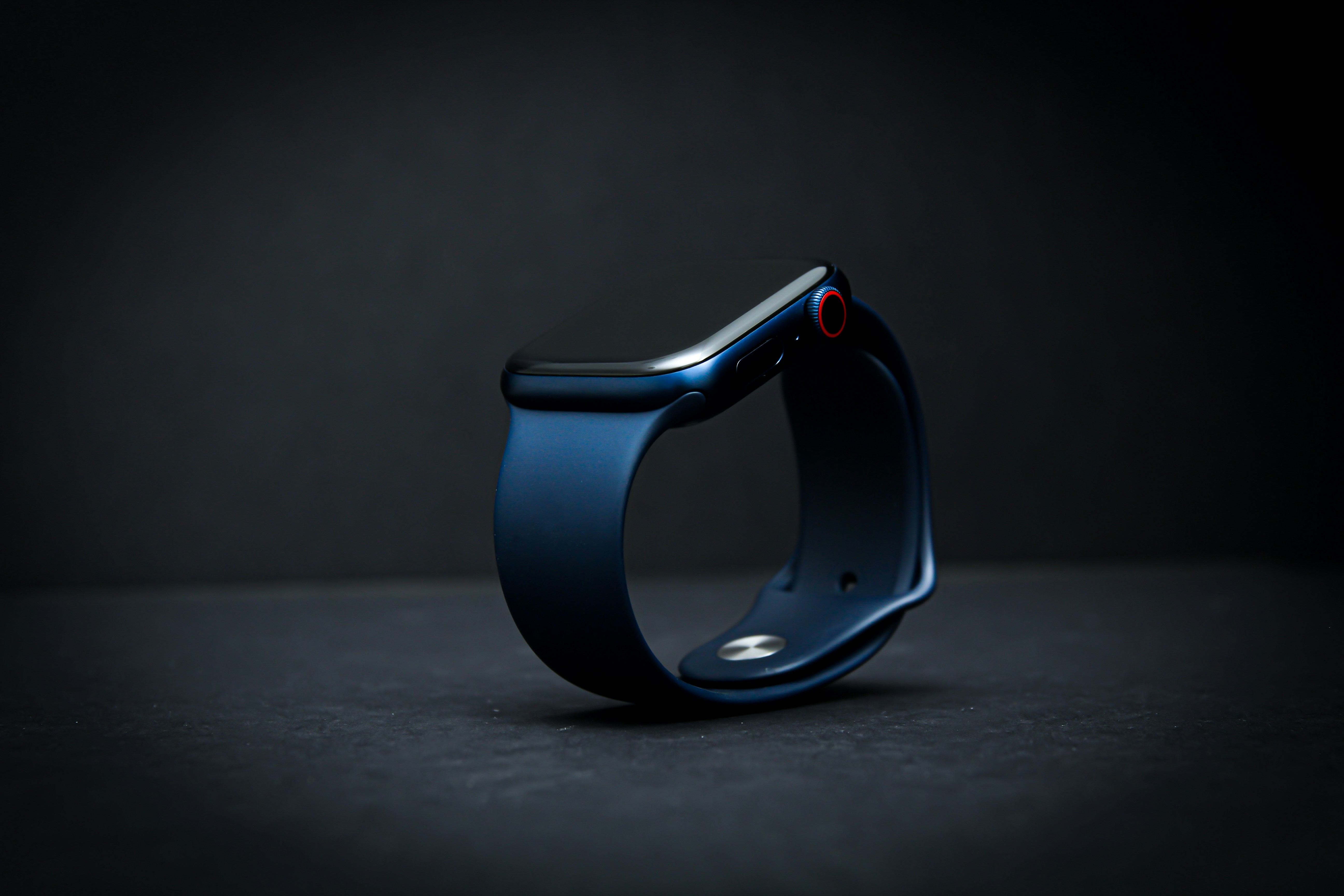
If you are asking why is my Apple Watch screen not waking, the issue is usually caused by a setting, mode or simple software glitch. The watch may still be working normally, but the screen might not turn on when you raise your wrist, tap the display or expect the Always On Display to appear.
This can happen because Theater Mode is enabled, Sleep Focus is active, Wake on Wrist Raise is turned off, battery saving settings are limiting the display or your wrist movement is not being detected clearly. In some cases, the problem can also come from a temporary watchOS issue that needs a restart.
The good news is that most Apple Watch screen wake problems are easy to check. Start with the quick settings first before assuming the display or battery is broken.
Why Is My Apple Watch Screen Not Waking?
When your Apple Watch screen stays off, think of the problem in three areas: mode, settings and behavior.
A mode like Theater Mode or Sleep Focus may intentionally keep the screen dark. A setting like Wake on Wrist Raise may be disabled. Or your wrist movement may not be strong enough for the watch to recognize that you want to wake the display.
The most common causes are:
Theater Mode is on
Sleep Focus is active
Wake on Wrist Raise is turned off
Always On Display is disabled or limited
Low Power Mode is active
Wrist movement is too subtle
The watch is locked or not sitting correctly on your wrist
A software issue needs a restart
Go through these in order. Most users find the answer before needing deeper troubleshooting.
Check Theater Mode First
Theater Mode is one of the most common reasons an Apple Watch display does not wake when you raise your wrist.
When Theater Mode is on, the screen stays dark until you tap it, press a button or turn the Digital Crown. This is useful in cinemas, meetings, classrooms or at night because the screen does not light up accidentally.
To check it, open Control Center on your Apple Watch and look for the theater masks icon. If it is active, turn it off and test raise to wake again.
If your Apple Watch screen not waking issue started suddenly, Theater Mode is one of the first things to check. Many users turn it on once and forget it is still active.
Check Sleep Focus
Sleep Focus can also make your Apple Watch screen feel less responsive at night or during scheduled sleep hours.
When Sleep Focus is active, your watch is designed to reduce distractions. Depending on your setup, the display may stay dim, notifications may be limited and the watch may require an extra step to wake normally.
Open Control Center and check whether Sleep Focus is active. You can also review your Sleep schedule on iPhone if the watch keeps entering Sleep Focus automatically.
If your Apple Watch screen stays off mostly at night, Sleep Focus is probably involved. That does not mean anything is wrong. It means the watch is following your sleep settings.
Turn On Wake on Wrist Raise
Wake on Wrist Raise is the setting that makes your Apple Watch display turn on when you lift your wrist.
If Apple Watch raise to wake is not working, this setting may be off. On your watch, open Settings, go to Display and Brightness and check Wake on Wrist Raise.
If it is off, turn it on and test again. Raise your wrist naturally, as if checking the time. The motion should be clear and direct.
You can also check this setting in the Watch app on your iPhone. If you changed battery or display settings recently, Wake on Wrist Raise may have been turned off without you realizing it.
Review Always On Display
Always On Display is different from Wake on Wrist Raise.
If your model supports Always On Display, the screen can remain visible in a dimmed state even when your wrist is down. If Always On Display is turned off, the screen may go fully dark until you wake it.
This can make some users think the Apple Watch display is not turning on, especially if they recently changed models or settings.
Go to Display and Brightness and check Always On if your model supports it. You do not need to keep it enabled, especially if battery life matters, but knowing whether it is on or off helps explain how the screen should behave.
If Always On is off and Wake on Wrist Raise is also off, your watch may stay dark until you tap it or press a button.
Check Low Power Mode and Battery Settings
Battery settings can affect the way your Apple Watch behaves.
Low Power Mode is useful when you need longer battery life, but it can limit or reduce certain background and display behaviors. If your watch feels less responsive than usual, check whether Low Power Mode is active.
Open Control Center or go to Battery settings. If Low Power Mode is on, turn it off temporarily and test the screen wake behavior.
Also check your battery level. If the watch is very low on battery, it may behave differently or feel slower. Charge it for a while, then test again.
Battery saving features are helpful, but they can make the watch feel less immediate if you are expecting normal wake behavior.
Make Sure Your Wrist Movement Is Clear
Apple Watch raise to wake depends on movement.
If you lift your wrist only slightly, twist it slowly or move from an unusual angle, the watch may not wake every time. This can happen while lying down, sitting at a desk, holding something or wearing the watch loosely.
Try a clear wrist raise motion. Turn your wrist toward your face like you are checking the time.
Also make sure the watch fits well. If it is too loose, it may not detect movement and wrist position reliably. A better fit can improve wake behavior, heart rate tracking and haptic alerts.
Restart Your Apple Watch and iPhone
If your Apple Watch wake settings look correct but the screen still does not wake properly, restart both your Apple Watch and iPhone.
Apple Watch and iPhone work closely together, so restarting both can fix temporary software problems, sync issues or stuck processes.
After restarting, test the display again. Raise your wrist, tap the screen, press the Digital Crown and open Control Center. If everything works normally after the restart, the issue was likely temporary.
If the problem started after an update, restarting is especially worth trying.
Check for Software Updates
Software bugs can sometimes affect display behavior, wake settings or Focus behavior.
Open the Watch app on your iPhone and check for watchOS updates. Also make sure your iPhone is updated. If an update is available, install it when your watch has enough battery and is charging.
Updates can fix bugs, but they can also temporarily make the watch behave differently while background processes settle. If the issue appeared right after an update, give it some time, restart both devices and check settings again.
When the Problem May Be More Serious
If your Apple Watch screen does not wake at all, even when you tap the display, press the Digital Crown or place it on the charger, the issue may be more serious than raise to wake.
Try charging the watch with a known working charger. Make sure the back of the watch and charger are clean. If the Apple logo or charging symbol never appears, the problem may involve charging, battery or hardware.
If the screen only fails with wrist raise, it is usually a settings or motion issue. If the screen never turns on under any condition, contact support or visit a service provider.
Conclusion
If you are wondering why is my Apple Watch screen not waking, start with the simple causes. Check Theater Mode, Sleep Focus, Wake on Wrist Raise, Always On Display and Low Power Mode before assuming the display is broken.
Most wake issues come from settings or modes that intentionally keep the screen dark. If the settings look right, restart your Apple Watch and iPhone, check for updates and test again.
If the screen never turns on with taps, buttons or charging, the issue may be more serious and support may be needed.