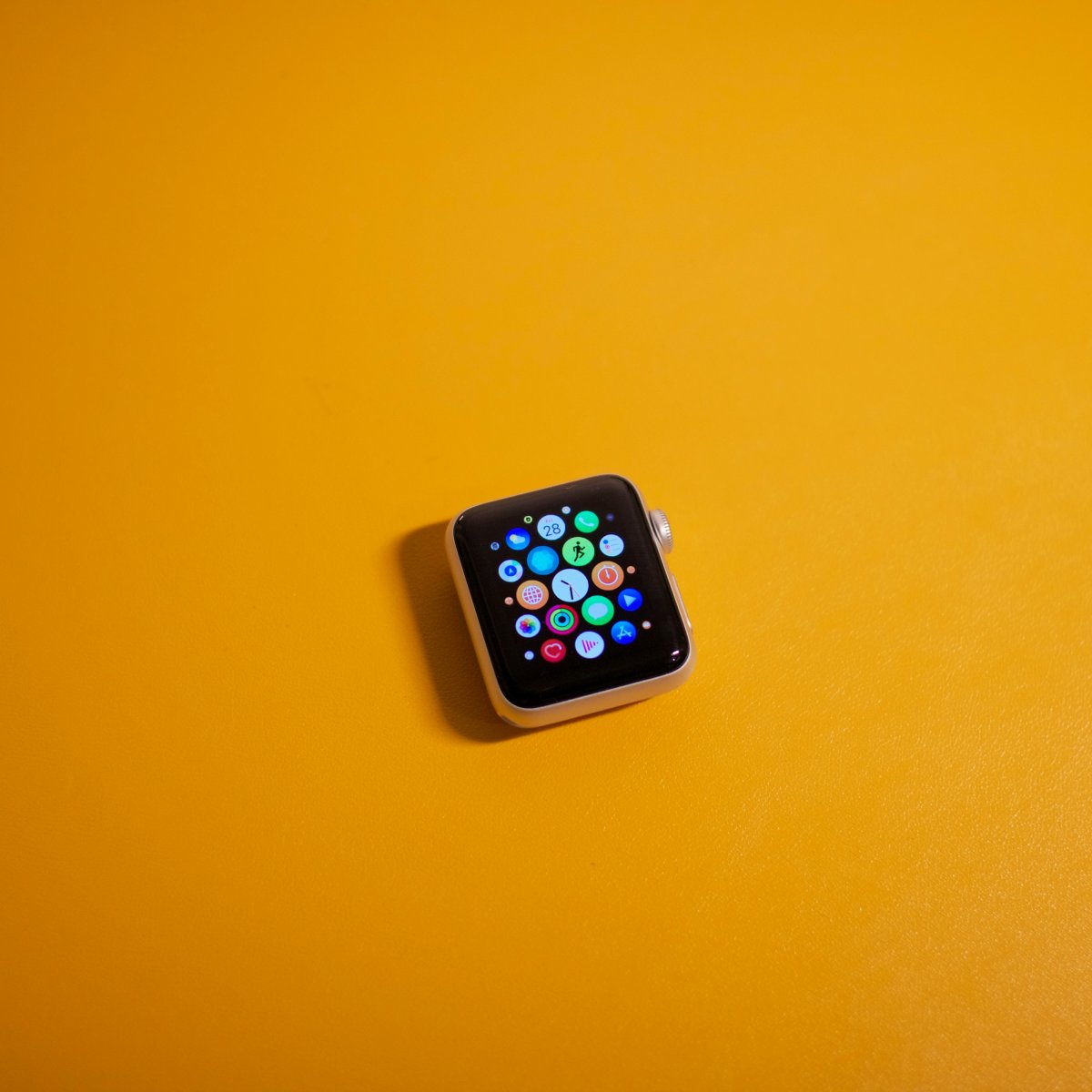
If you are asking why is my Apple Watch stuck on update, the issue is usually related to battery level, Wi Fi, iPhone connection, storage or a temporary software problem.
Apple Watch updates can take a while, especially when the update is preparing, downloading or verifying. If the progress seems slow, do not interrupt it too quickly. But if it has been stuck for a long time, there are a few safe steps to try.
Check Battery and Charging
Your Apple Watch should have enough battery before updating. Keep it on the charger during the update and make sure the magnetic charger is connected properly.
If the watch battery is low or the charger is not stable, the update may pause or fail. Also keep your iPhone charged because the update process often depends on both devices working together.
Check Wi Fi and iPhone Proximity
A weak connection can cause an Apple Watch update problem.
Keep your Apple Watch and iPhone close together. Make sure your iPhone is connected to reliable Wi Fi and Bluetooth is on. Avoid moving the devices apart while the update is preparing or installing.
If your Apple Watch update taking forever issue happens during downloading, Wi Fi is one of the first things to check.
Be Patient During Preparing Update
The “preparing” stage can feel stuck even when it is still working.
If your Apple Watch preparing update stuck message has only been there for a short time, give it more time. Large updates, slow Wi Fi and older devices can make the process feel longer than expected.
Do not restart during active installation unless the watch is clearly frozen and nothing has changed for a long period.
Restart Both Devices
If the update is not moving, restart your iPhone and Apple Watch.
After both devices turn back on, keep them close, connect to Wi Fi and try the update again from the Watch app. A restart can fix temporary sync or software issues that block the update.
Check Storage and Delete the Update File
Low storage can cause Apple Watch software update failed messages.
Open the Watch app on iPhone and check available storage. Remove unused apps, music or media if needed.
You can also try deleting the downloaded update file if it appears in storage settings, then download the update again. This can help when the update file is damaged or stuck.
When to Unpair or Get Support
If basic Apple Watch update troubleshooting does not work, unpairing and pairing again may help. This should be a later step because it takes more time.
If your watch will not turn on, keeps failing updates or gets stuck repeatedly, contacting support may be the safest option.
Conclusion
If you are wondering why is my Apple Watch stuck on update, start with the basics: charge the watch, keep your iPhone nearby, use reliable Wi Fi and be patient during the preparing stage.
If the update still fails, restart both devices, check storage and try deleting the update file before downloading it again. If the problem continues, unpairing or support may be the next step.