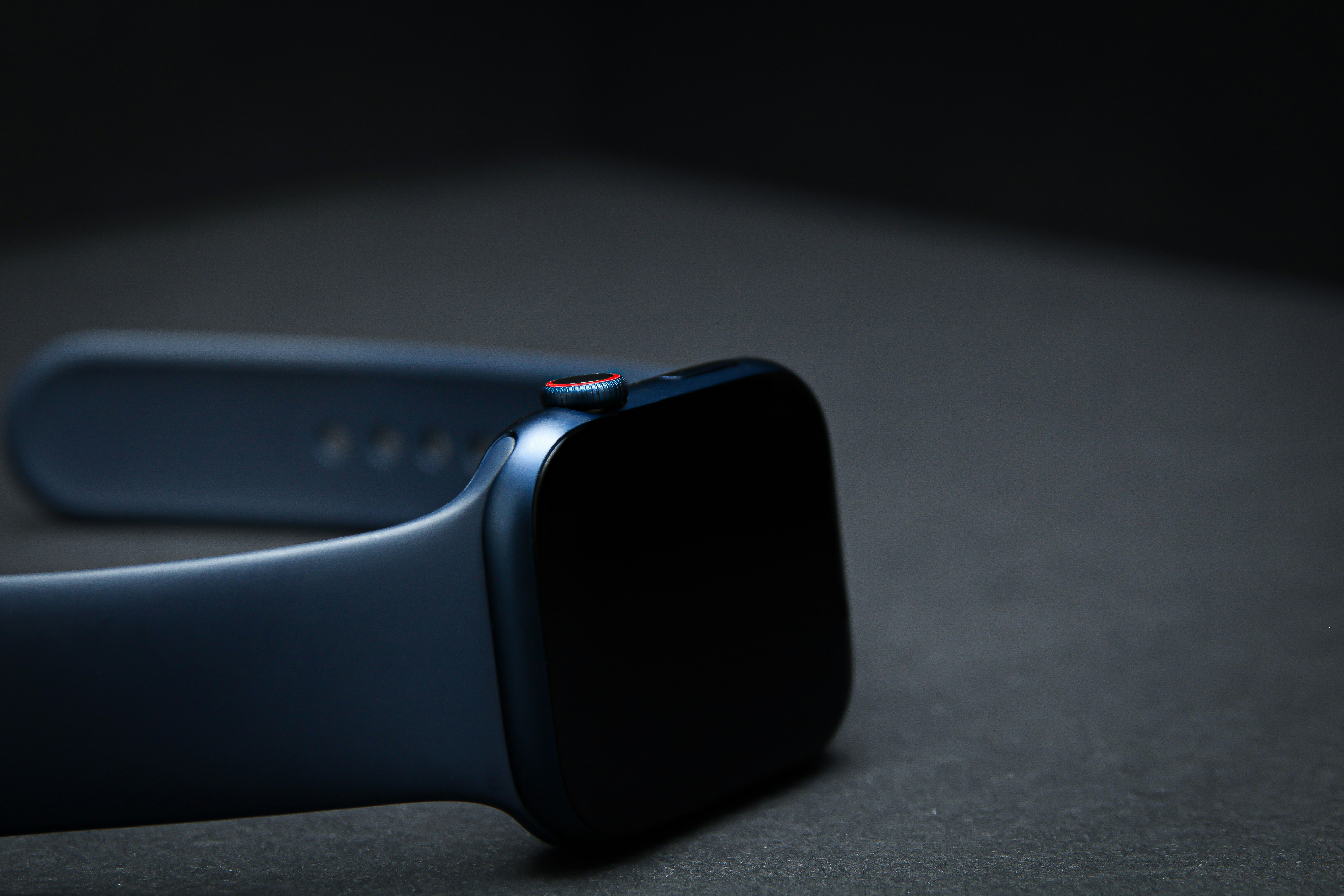
If you are asking why is my Apple Watch touch screen not responding, the problem can feel serious right away. You tap the screen and nothing happens. You try to swipe and it does not move. Maybe the watch is stuck on one screen, or it seems awake but will not react to your finger.
In many cases, the issue is not a broken display. An Apple Watch touch screen can stop responding because Water Lock is on, the screen is wet, dirt or sweat is blocking touch input, a screen protector is causing problems or the software is temporarily frozen.
This guide walks through the most practical fixes first. Start with the simple checks, then move to restart and force restart steps if the screen still does not respond.
Why Is My Apple Watch Touch Screen Not Responding?
The most common causes of an Apple Watch touch screen not working are usually physical or software related.
A wet screen may ignore touches. Water Lock may block normal screen interaction. A dirty display, tight case or badly fitted screen protector can also make touch input unreliable. If the watch is frozen, the screen may look normal but not react at all.
Common reasons include:
Water Lock is active
The screen is wet
The display is dirty or sweaty
A case or screen protector is interfering
The watchOS software is frozen
An app is stuck
The watch needs a restart
The screen or hardware may be damaged
Check these in order. Most touch problems can be fixed without service.
Check Water Lock First
Water Lock is one of the first things to check when the Apple Watch screen feels unresponsive.
When Water Lock is active, the watch is designed to prevent accidental taps from water. This is useful while swimming, showering or around water, but it can make the screen seem like it is not working.
Look for the Water Lock icon on the display or in Control Center. To turn it off, press and hold the Digital Crown until the watch unlocks and clears water from the speaker.
If your Apple Watch Water Lock screen was active, the touch screen should respond normally after you turn it off.
Dry the Screen and Your Finger
Apple Watch touch input does not work well when the screen is wet. Water, sweat, lotion or even a damp finger can make taps and swipes unreliable.
Dry the screen gently with a soft, lint free cloth. Also dry your finger before testing again. Do not use sharp objects, cleaning sprays or anything rough on the display.
This is especially important after workouts, swimming, rain or washing your hands. If the screen started acting strange after water exposure, dry it first before trying more advanced fixes.
Clean the Display
A dirty screen can also cause an Apple Watch screen problem.
Sweat, dust, oil, sunscreen and skin products can build up on the display. This may make the touch screen less accurate or completely unresponsive in some areas.
Turn the watch off if possible, remove it from the charger and wipe the screen with a clean soft cloth. If needed, lightly dampen the cloth with fresh water, then dry the display fully.
A clean screen is a simple fix, but it solves more touch issues than many users expect.
Remove the Case or Screen Protector
A tight case or poorly installed screen protector can interfere with touch input.
If your Apple Watch touch screen is not working after installing a protector, bumper or case, remove it and test the screen again. Look for bubbles, lifted edges, trapped dust or pressure around the display.
Some screen protectors make swipes harder near the edges. Some cases press too tightly against the glass or side of the watch.
If the screen works normally after removing the accessory, the watch itself is probably fine. Replace the accessory with one that fits better.
Check Whether the Watch Is Frozen
Sometimes the touch screen is not the real problem. The Apple Watch screen may be frozen because the software or an app is stuck.
If the time is not changing, animations are frozen or buttons do not respond either, the watch may need a restart. If only one app is frozen, press the Digital Crown to see if you can return to the watch face or Home Screen.
If the screen does not respond but the buttons still work, try using the Digital Crown or side button to navigate out of the frozen view. If that does not help, restart the watch.
Restart Your Apple Watch
A normal restart can fix temporary software problems.
Press and hold the side button until the power options appear, then turn off the watch. Wait a few seconds, then press and hold the side button again until the Apple logo appears.
If the touch screen is partly working, restart normally. After the watch turns back on, test taps, swipes, the Digital Crown and Control Center.
If the Apple Watch unresponsive screen problem was caused by a temporary glitch, a restart may solve it immediately.
Force Restart if the Screen Is Completely Frozen
If your Apple Watch screen is frozen and you cannot restart normally, a force restart may help.
Press and hold both the side button and the Digital Crown at the same time. Keep holding until the Apple logo appears, then release both buttons.
Use force restart only when the watch is unresponsive and a normal restart is not possible. Do not force restart during an update, because interrupting an update can cause more problems.
After the watch restarts, give it a moment to load, then test the touch screen again.
When Service May Be Needed
If the Apple Watch touch screen still does not respond after Water Lock, cleaning, drying, removing accessories, restarting and force restarting, the issue may be hardware related.
Service may be needed if:
The screen is cracked
Part of the screen never responds
The watch was dropped or hit
The display has lines, flickering or discoloration
The watch gets stuck repeatedly
The screen does not respond after all basic fixes
A single frozen screen can happen from software. A repeated or permanent touch problem may need professional inspection.
Conclusion
If you are wondering why is my Apple Watch touch screen not responding, start with the simple fixes. Check Water Lock, dry the screen, clean the display and remove any case or screen protector that may be interfering.
If the Apple Watch screen is frozen, restart it. If normal restart is impossible, use an Apple Watch force restart by holding the side button and Digital Crown together until the Apple logo appears.
If the screen still does not respond after all basic fixes, especially after a drop, crack or repeated freezing, service may be needed.